How to Delete All Unread Emails in Gmail (2 Minutes)
Get Rid of Junk Emails in Minutes
Use InboxPurge to quickly unsubscribe, delete old emails, and keep your inbox tidy
Clean My Inbox Now →Clean your inbox in minutes
Want to delete all unread emails in Gmail at once? You can. It takes about 2 minutes, and it works whether you have 50 unread emails or 50,000.
Here's exactly how to do it.
How to Delete All Unread Emails in Gmail on Desktop
Step 1: Search for Unread Emails
- Open Gmail on your computer.
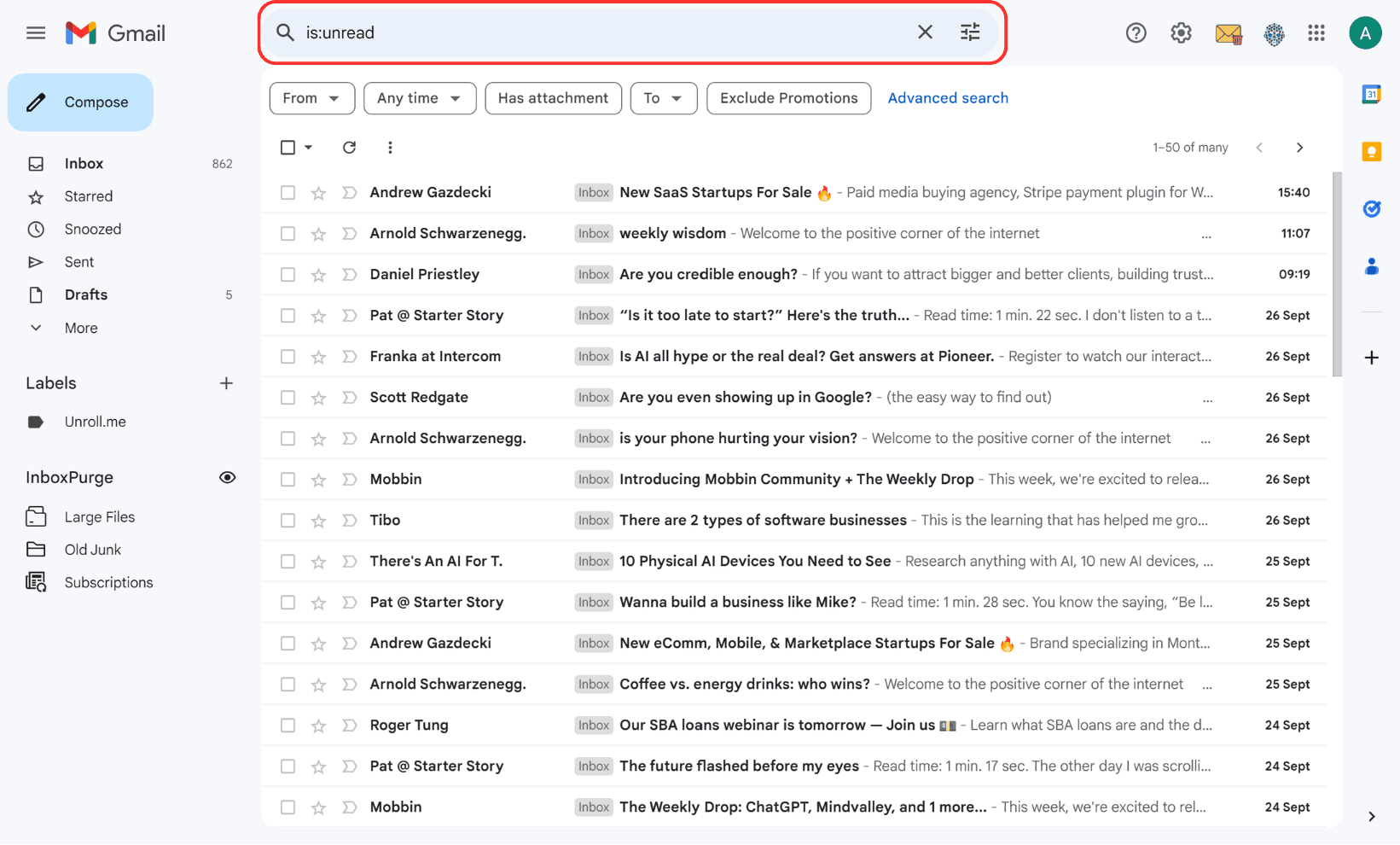
- Click the search bar at the top.
- Type
is:unreadand press Enter.
This filters your inbox to show only unread emails.
Step 2: Select and Delete All Unread Emails
- Click the checkbox at the top left to select all visible emails.
- Gmail only selects the first 50. Look for the message that says "Select all conversations that match this search" and click it. This selects every unread email in your account.
- Click the trash icon to delete them all.
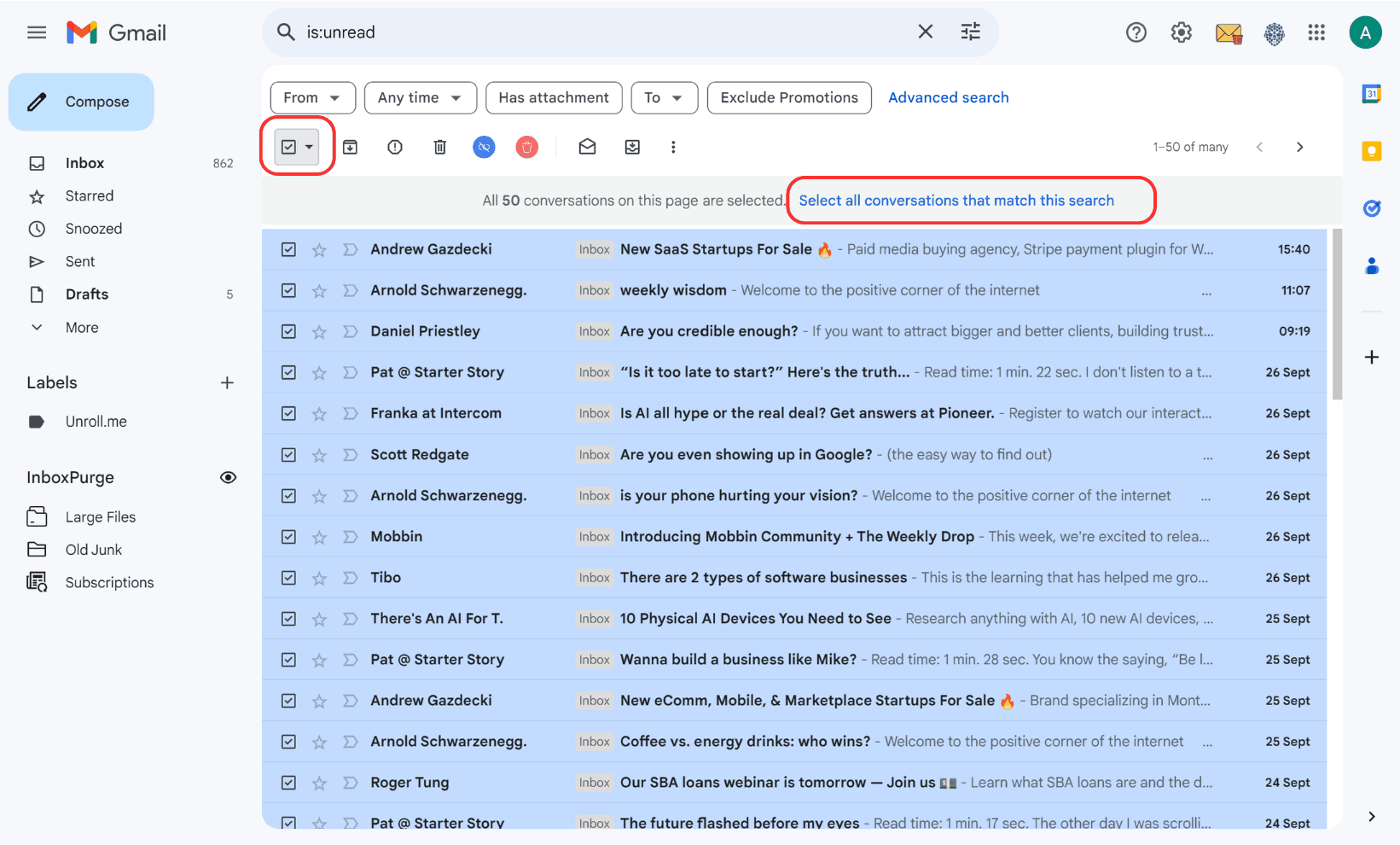
That's it. All your unread emails are now in the Trash.
Step 3: Empty the Trash (Optional)
Deleted emails stay in Trash for 30 days, then get removed automatically. If you want to free up storage space right now:
- Go to the Trash folder in the left sidebar.
- Click "Empty Trash now" at the top.
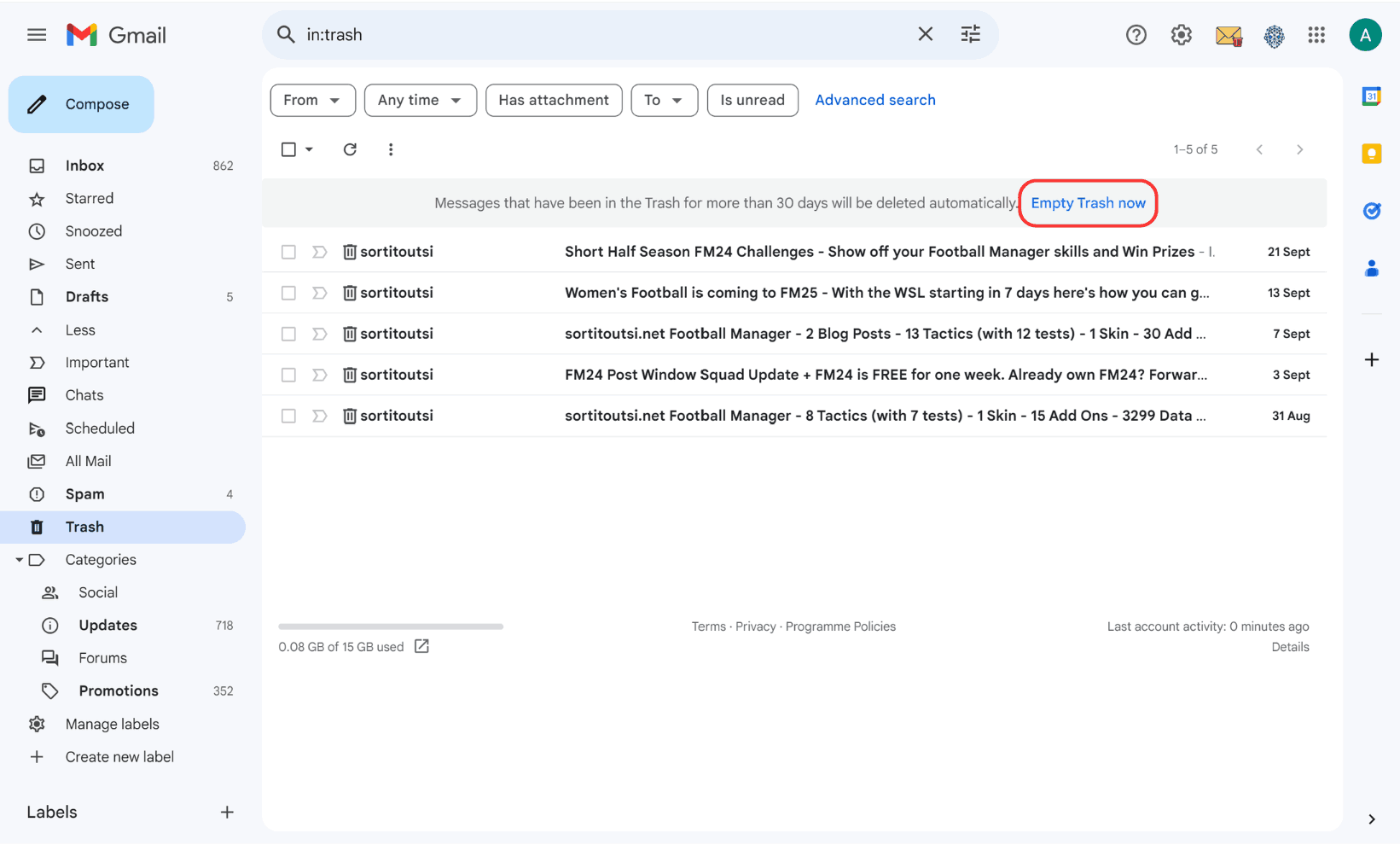
Warning: Once you empty the Trash, those emails are gone for good.
How to Mass Delete Unread Emails in Gmail on Mobile
The Gmail mobile app doesn't let you select all emails at once like the desktop version does. Here's the best workaround:
- Open the Gmail app on your phone.
- Tap the search bar and type
is:unread. - Long-press one email to start selecting, then tap others to add them.
- Tap the trash icon to delete.
The problem? You can only select emails one at a time. If you have hundreds or thousands of unread emails, this takes forever.
Faster option: Open Gmail in your phone's web browser (mail.google.com), switch to desktop mode, and use the desktop steps above. Or just use a computer.
How to Delete Unread Emails From a Specific Sender
If you don't want to delete everything, you can filter by sender:
is:unread from:[email protected]— deletes unread emails from one senderis:unread older_than:1y— deletes unread emails older than a yearis:unread category:promotions— deletes unread promotional emails only
Type any of these in the Gmail search bar, then follow the same select-all-and-delete steps from above.
Is There a Way to Delete All Unread Emails in Gmail at Once?
Yes. The method above lets you delete all unread emails in Gmail in one go. The key step most people miss is clicking "Select all conversations that match this search" after the initial checkbox. Without that, Gmail only selects the first 50 emails on the page.
Why Does Gmail Only Let You Select 50 Emails?
Gmail shows 50 emails per page by default. When you click the top checkbox, it only selects those 50 visible emails. But after you click that checkbox, Gmail shows a link to select all emails matching your search. Click that, and you can delete thousands of unread emails at once.
You can also change how many emails Gmail shows per page. Go to Settings > General > Maximum page size and set it to 100. This doesn't change the bulk delete process, but it lets you see more emails at a time.
How Can I Keep Unread Emails From Piling Up Again?
Deleting unread emails is a quick fix. But if your inbox fills up again in a few weeks, you need a better system:
- Unsubscribe from newsletters you never read.
- Set up filters in Gmail to auto-delete or auto-archive emails from certain senders.
- Use a tool like InboxPurge to bulk unsubscribe and clean up your Gmail automatically. It finds your biggest email senders and lets you clear them out in seconds instead of doing it manually.
Frequently Asked Questions (FAQs) about Deleting All Unread Emails in Gmail
1. How do I select all unread emails in Gmail?
Use the search query is:unread to filter all unread emails. Then, click the checkbox at the top to select the emails. If Gmail only selects a few, click “Select all conversations that match this search.”
2. Can I delete unread emails on mobile?
Yes, but it’s more manual. Use the search bar to find unread emails, then select and delete them one by one.
3. Will deleting unread emails free up space?
Yes, deleting emails, especially those with attachments, can free up Gmail storage.
4. Can I recover unread emails after deletion?
Emails moved to the Trash can be recovered within 30 days. Once the Trash is emptied, they’re permanently deleted.
5. How do I empty the Trash in Gmail?
Navigate to the Trash folder and click “Empty Trash now” to permanently delete all emails.