How to Delete All Promotions in Gmail at Once
Get Rid of Junk Emails in Minutes
Use InboxPurge to quickly unsubscribe, delete old emails, and keep your inbox tidy
Clean My Inbox Now →Clean your inbox in minutes
Want to delete all promotions in Gmail in one go? You can. It takes about 30 seconds, and it works even if you have thousands of promotional emails sitting there.
Here's how.
How to Delete All Promotions in Gmail (Desktop)
Step 1: Open the Promotions Tab
- Log in to Gmail.
- Click the Promotions tab at the top of your inbox.
If you don't see a Promotions tab, type category:promotions in the search bar and press Enter. This shows the same emails.
Step 2: Select All Promotional Emails
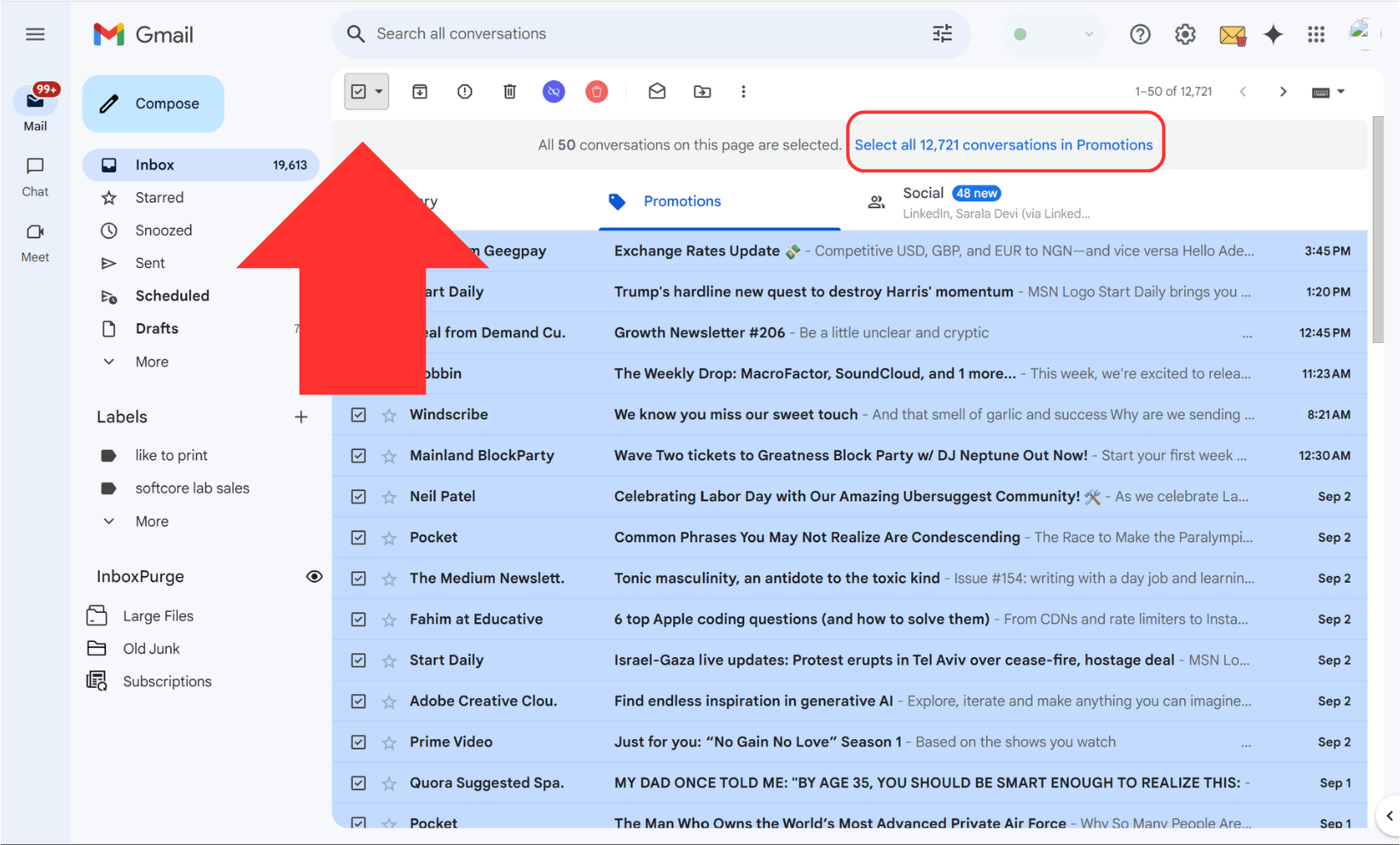
- Click the checkbox at the top left to select all emails on the page.
- Gmail only selects the first 50. Look for the message that says "Select all conversations in Promotions" and click it.
This selects every promotional email in your account, not just the ones on screen.
Step 3: Delete Them
Click the trash icon. All your promotional emails move to Trash.
That's it. Your Promotions tab is empty.
Optional: Empty the Trash
Deleted emails sit in Trash for 30 days before Gmail removes them automatically. If you want to free up storage space right now:
- Go to Trash in the left sidebar.
- Click "Empty Trash now" at the top.
Warning: Once you empty Trash, those emails are permanently gone.
How to Delete Gmail Promotions All at Once on Phone
Gmail's mobile app doesn't have a "select all" option like desktop. Here's the fastest workaround:
- Open your phone's browser (Chrome, Safari, etc.).
- Go to mail.google.com.
- Switch to desktop mode (in Chrome, tap the three dots and select "Desktop site").
- Follow the desktop steps above.
This is much faster than selecting emails one by one in the app.
How to Auto-Delete Future Promotions With a Filter
Clearing out promotions once is great, but they'll pile up again. A Gmail filter can auto-delete new promotional emails so you never have to do this manually again.
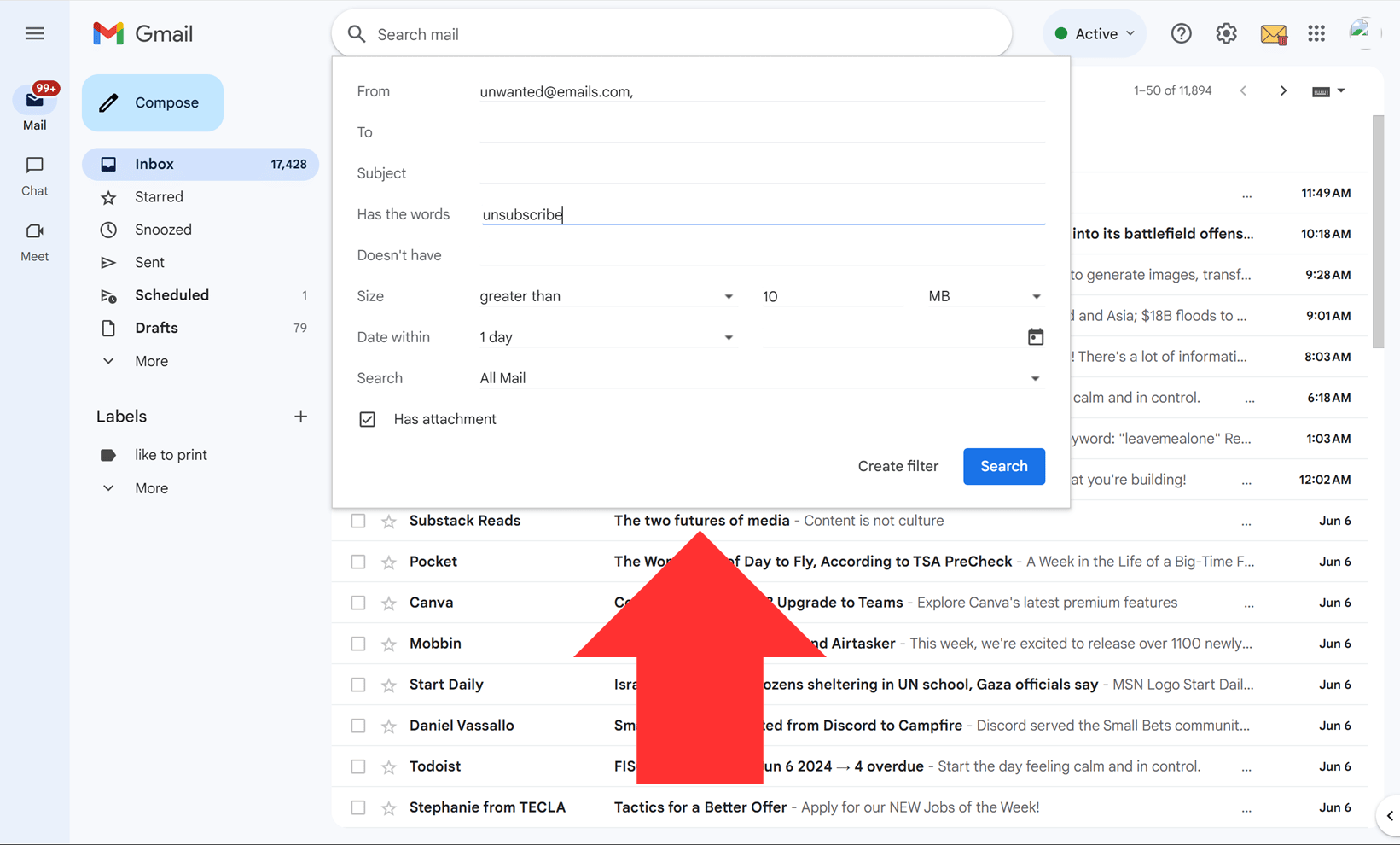
- Click the search options arrow (down arrow) in Gmail's search bar.
- In the "Has the words" field, type
category:promotions. - Click Create filter.
- Check Delete it.
- Click Create filter to save.
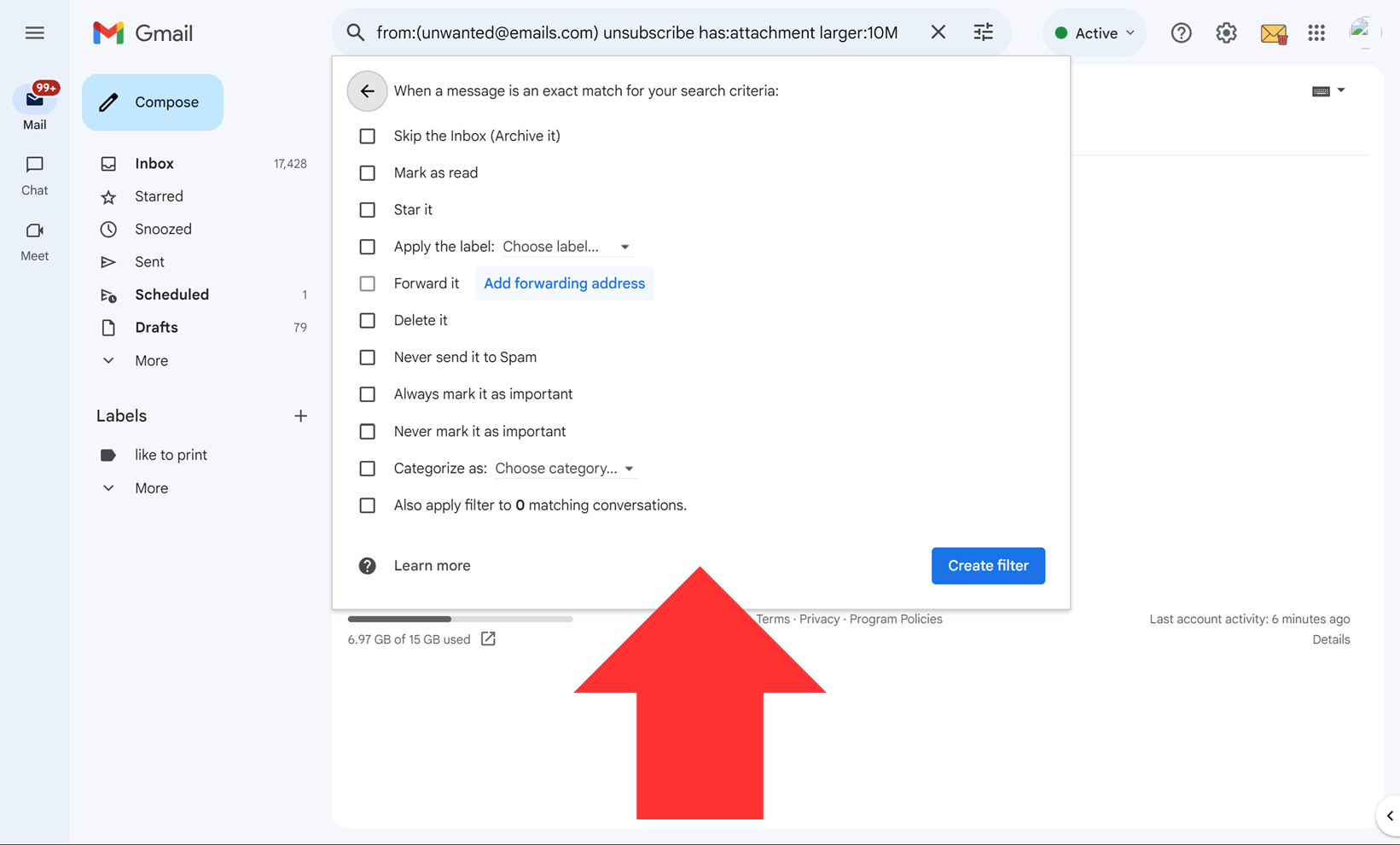
Now Gmail automatically trashes new promotional emails as they arrive. You can also check "Also apply filter to matching conversations" to delete existing promotions at the same time.
Note: This deletes all promotional emails, including ones you might want (like order confirmations from stores). If you only want to stop certain senders, create filters for those specific email addresses instead.
How to Delete Promotions From Specific Senders Only
If you don't want to wipe out everything in Promotions, you can target specific senders:
category:promotions from:[email protected]— deletes promos from one sendercategory:promotions older_than:6m— deletes promotional emails older than 6 monthscategory:promotions subject:sale— deletes promo emails with "sale" in the subject
Type any of these in Gmail's search bar, then use the same select-all-and-delete steps from above.
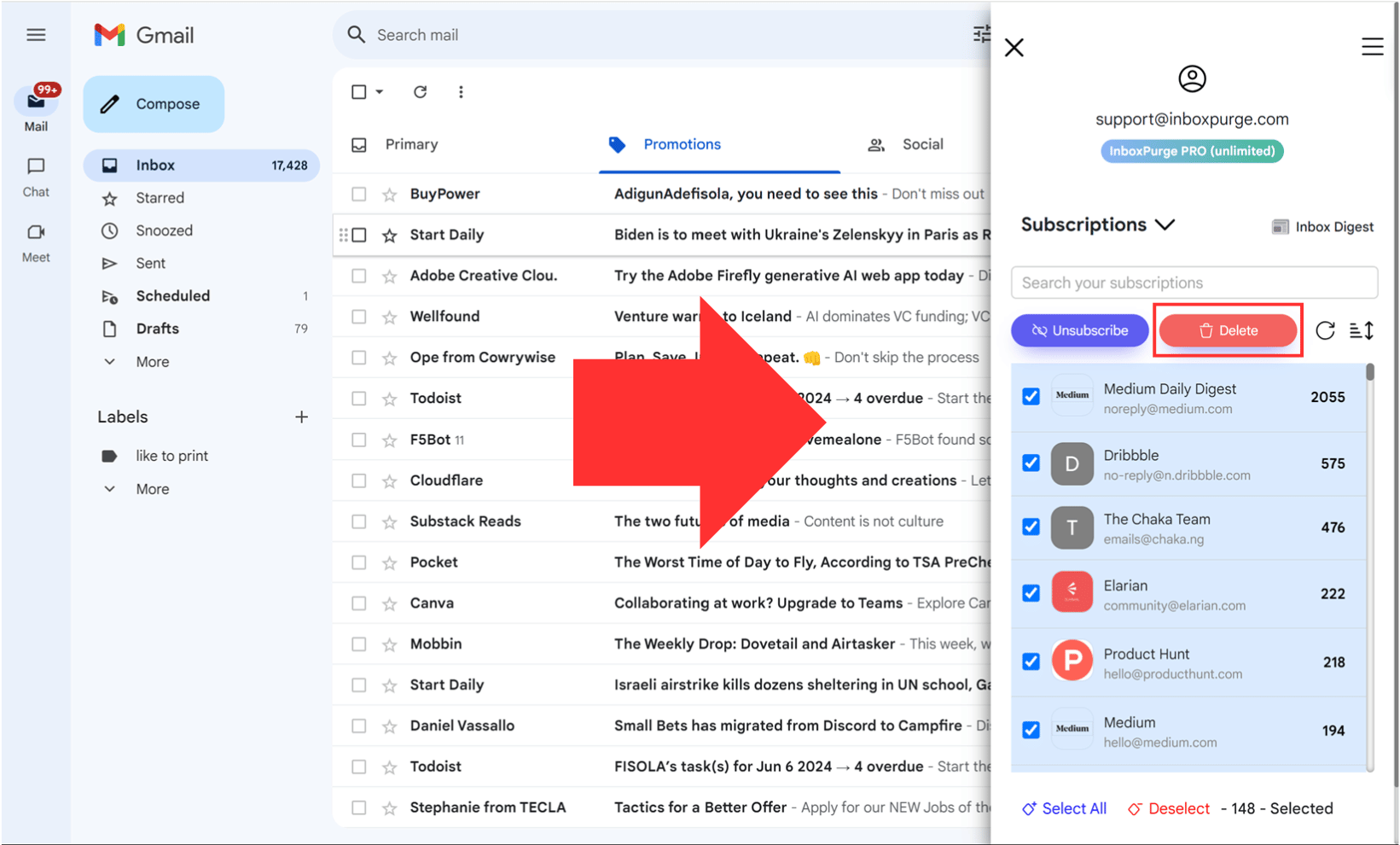
For cleaning up large volumes of promotional emails from many senders at once, a tool like InboxPurge can speed things up. It shows you a list of all your email senders sorted by volume, so you can bulk delete or unsubscribe from the biggest offenders in a few clicks instead of searching for them one at a time.
How to Stop Promotional Emails From Coming Back
Deleting promotions is a quick fix. To keep them from piling up again:
- Unsubscribe from senders you never read. Open one of their emails and click the Unsubscribe link at the top or bottom.
- Block persistent senders. Open their email, click the three dots in the top right, and select "Block."
- Be careful when signing up online. Uncheck the "send me emails" box when creating accounts or making purchases.
Frequently Asked Questions (FAQs) about Deleting Promotional Emails in Gmail
1. Why should I delete promotional emails from my Gmail inbox?
Promotional emails can quickly clutter your inbox, making it harder to find important messages. Deleting them regularly can improve your productivity, help you stay organized, and free up storage space in your Gmail account.
2. What is the quickest way to delete all promotional emails in Gmail?
The quickest way is to use the 'Select All' feature in the Promotions tab. By selecting all conversations and pressing the delete icon, you can remove all promotional emails in one go.
3. Can I automate the process of deleting promotional emails?
Yes, you can automate the deletion by setting up filters in Gmail that identify and delete promotional emails based on specific criteria such as sender or keywords. Alternatively, you can use tools like InboxPurge to automate the process.
4. How do Gmail filters help in managing promotional emails?
Gmail filters allow you to automatically sort, label, or delete emails based on criteria you set. This helps in managing promotional emails by automatically deleting or archiving them as they arrive.
5. What is InboxPurge, and how does it help with promotional emails?
InboxPurge is a Chrome extension that helps you bulk delete or unsubscribe from unwanted promotional emails in Gmail. It allows you to manage your inbox more efficiently by automating the deletion process.
6. Can I recover promotional emails once they are deleted?
Once promotional emails are deleted from your Gmail inbox, they go to the Trash folder. You can recover them from there within 30 days. After 30 days, emails in the Trash are permanently deleted and cannot be recovered.
7. How can I prevent promotional emails from cluttering my inbox in the future?
To prevent clutter, regularly unsubscribe from newsletters or promotions you no longer read, block unwanted senders, and mark unwanted emails as spam. Setting up Gmail filters can also help manage these emails automatically.
8. Is it safe to use third-party tools like InboxPurge?
While many third-party tools are safe, it’s important to choose one with good reviews and a strong reputation. InboxPurge is designed with user safety in mind, ensuring that your data remains secure.
9. Will deleting promotions free up space in my Gmail account?
Yes, deleting promotional emails, especially those with large attachments, can free up storage space in your Gmail account, helping you avoid hitting storage limits.
10. What should I do if I accidentally delete important promotional emails?
If you accidentally delete important promotional emails, check your Trash folder immediately. You can restore them from the Trash within 30 days before they are permanently deleted.