Gmail Not Receiving Emails? 7 Fixes That Work (2026 Guide)
Get Rid of Junk Emails in Minutes
Use InboxPurge to quickly unsubscribe, delete old emails, and keep your inbox tidy
Clean My Inbox Now →Clean your inbox in minutes
Gmail not receiving emails?
You’re not alone. This is a common issue, and the good news is that it’s usually easy to fix.
If your inbox suddenly stopped getting emails, don’t panic. In most cases, one of a few simple issues is the cause. Below are 7 proven fixes you can try right now to get your Gmail working again.
Quick Fixes (Try These First)
- Check your Gmail storage
- Review filters and blocked addresses
- Check your spam folder
- Disable email forwarding
- Check Gmail server status
- Verify your internet connection
- Clean up your inbox
Start with the first one. It solves most cases.
Fix 1: Check Gmail Storage (Most Common Issue)
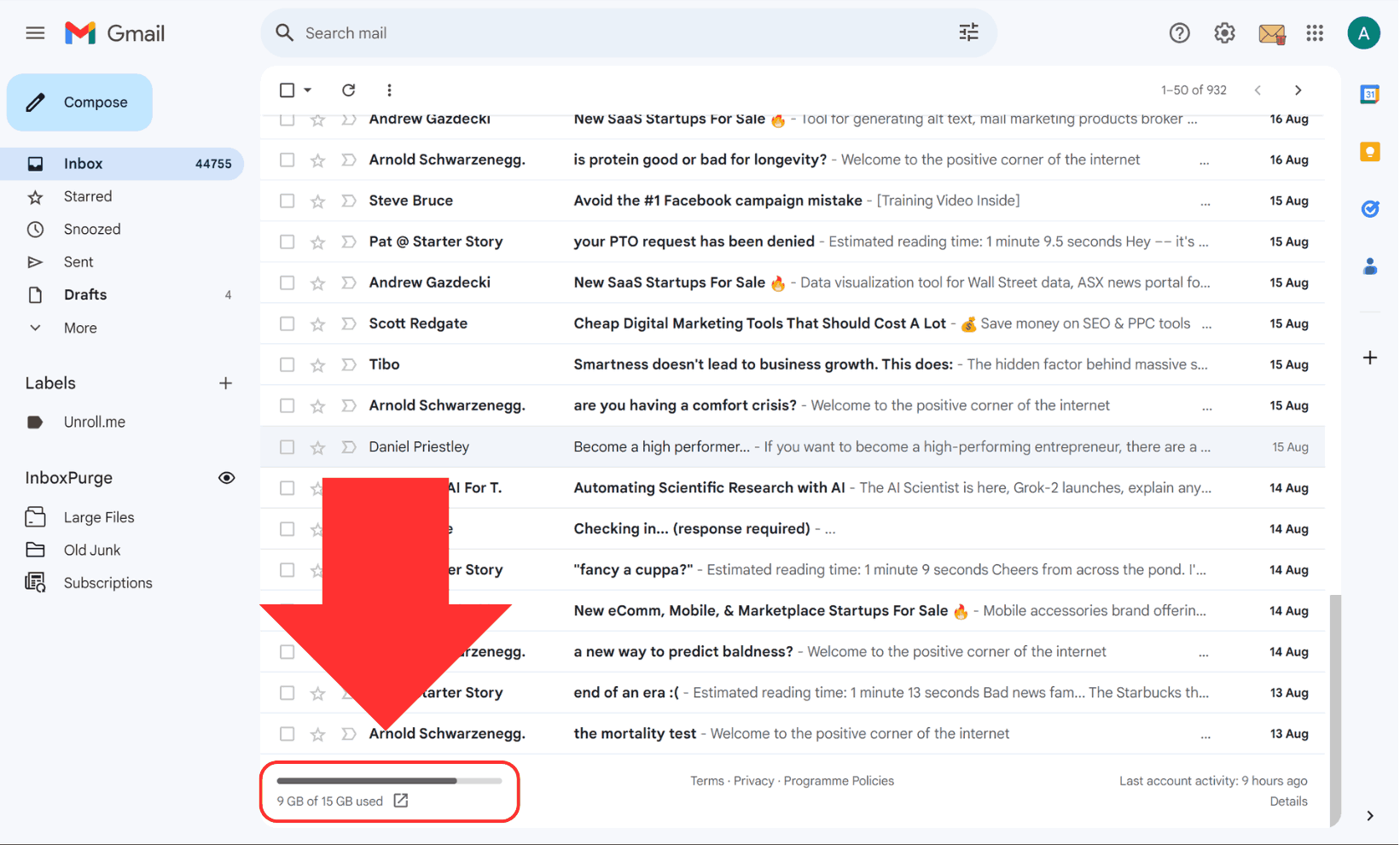
One of the most common reasons Gmail stops receiving emails is because your storage is full.
Gmail shares storage with Google Drive and Google Photos. If your storage is maxed out, new emails will not come through.
To check:
- Scroll to the bottom of your Gmail inbox to see your storage usage
- If you are close to the limit, delete large emails or files
You can search for large emails using:
has:attachment larger:10M
This usually takes less than a minute and often fixes the issue immediately.
Fix 2: Review Filters and Blocked Addresses
Filters can silently move, archive, or delete emails before they reach your inbox.
To check your filters:
- Click the gear icon in Gmail
- Go to “See all settings”
- Open “Filters and Blocked Addresses”
Look for anything that might be redirecting or deleting emails.
Also check if any important senders are blocked.
This takes about 2 minutes and is a very common cause.
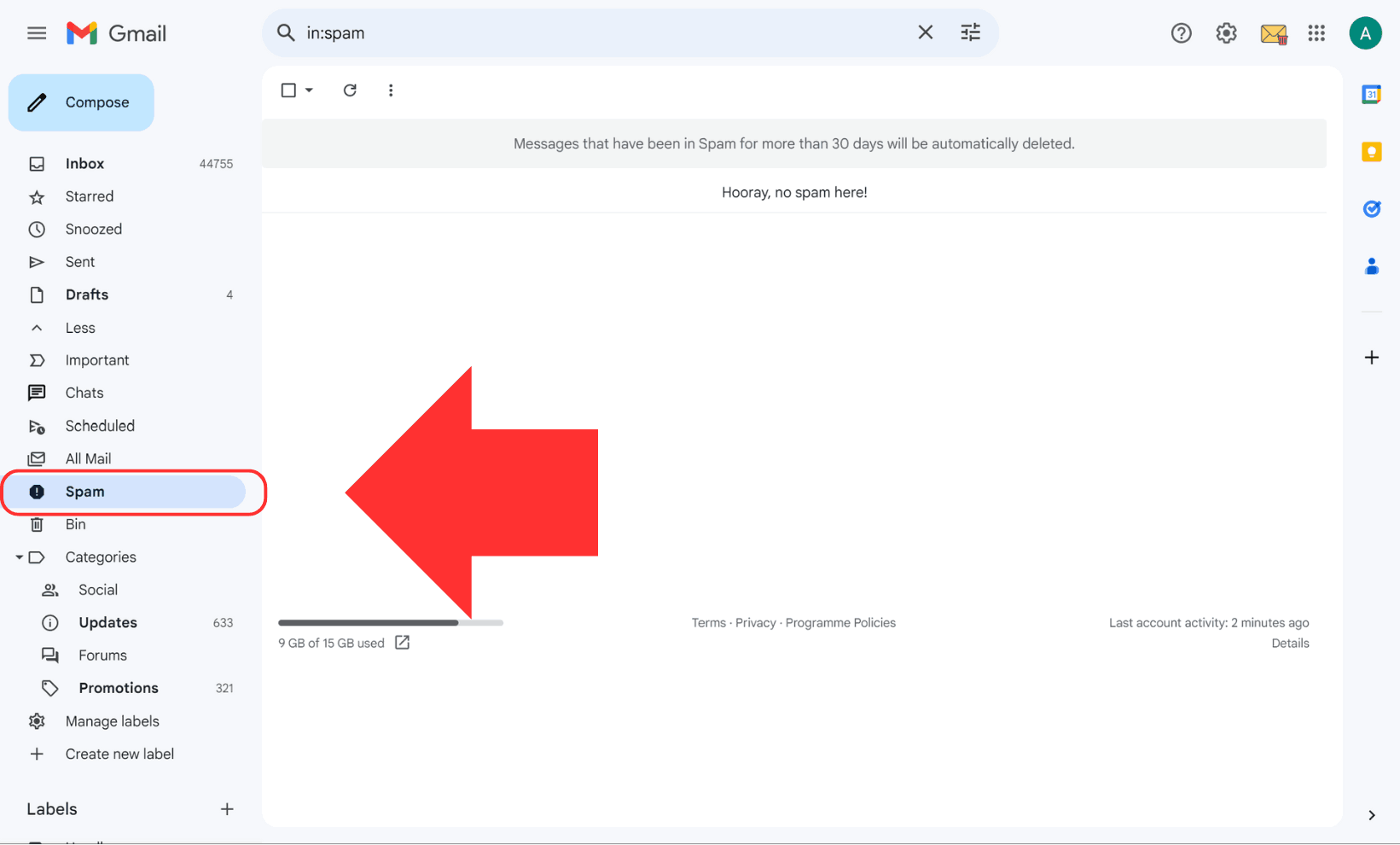
Fix 3: Check Your Spam Folder
Sometimes emails are not missing, they are just in the wrong place.
To check:
- Click “More” in the left sidebar
- Open “Spam”
If you find important emails there:
- Open the email
- Click “Not Spam”
This helps Gmail learn and prevents it from happening again.
Fix 4: Disable Email Forwarding
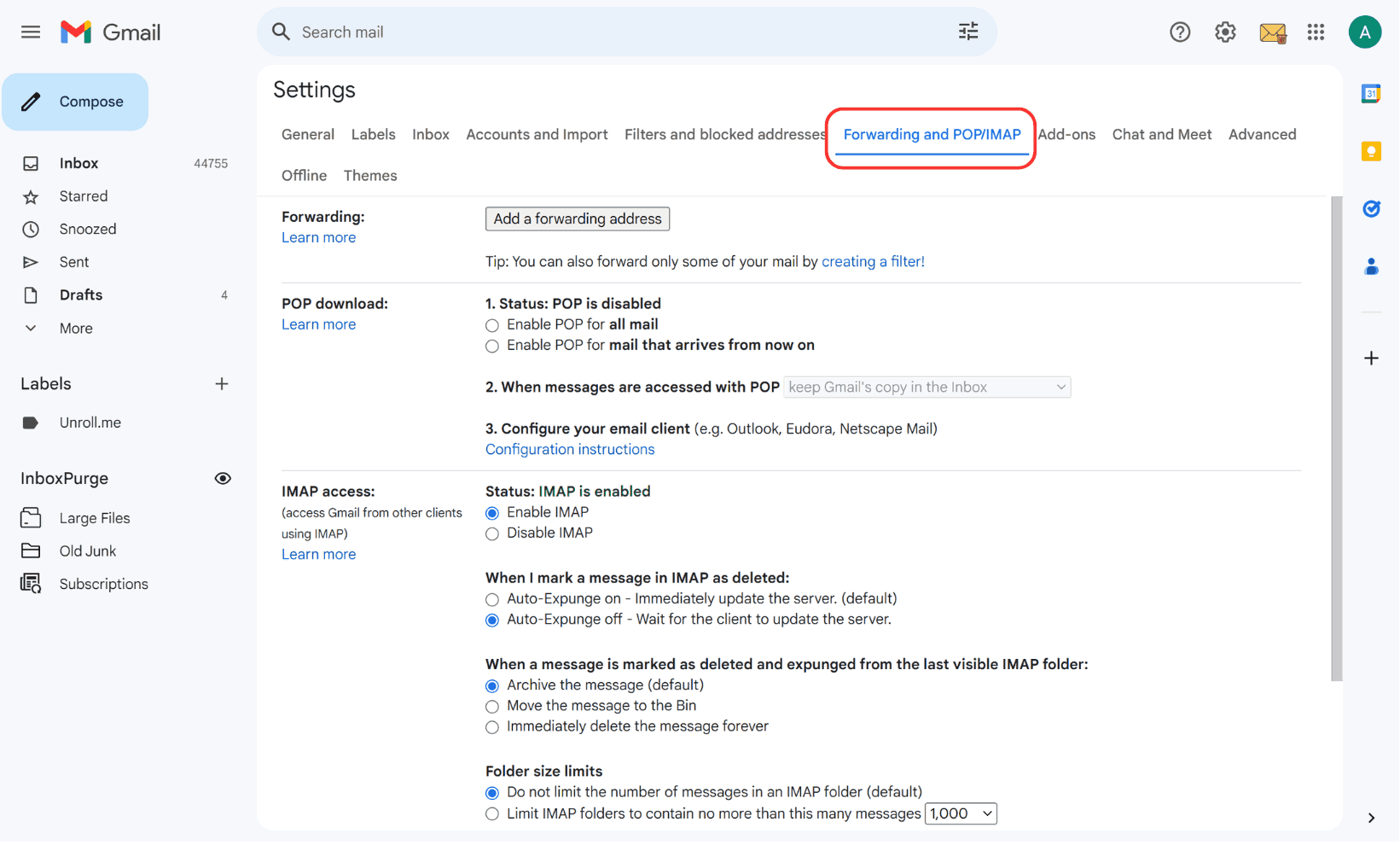
If forwarding is turned on, your emails might be going somewhere else.
To check:
- Go to Gmail settings
- Open “Forwarding and POP/IMAP”
- Turn off forwarding if it is enabled
This fix is quick and often overlooked.
Fix 5: Check for Gmail Outages
Sometimes the issue is not on your end.
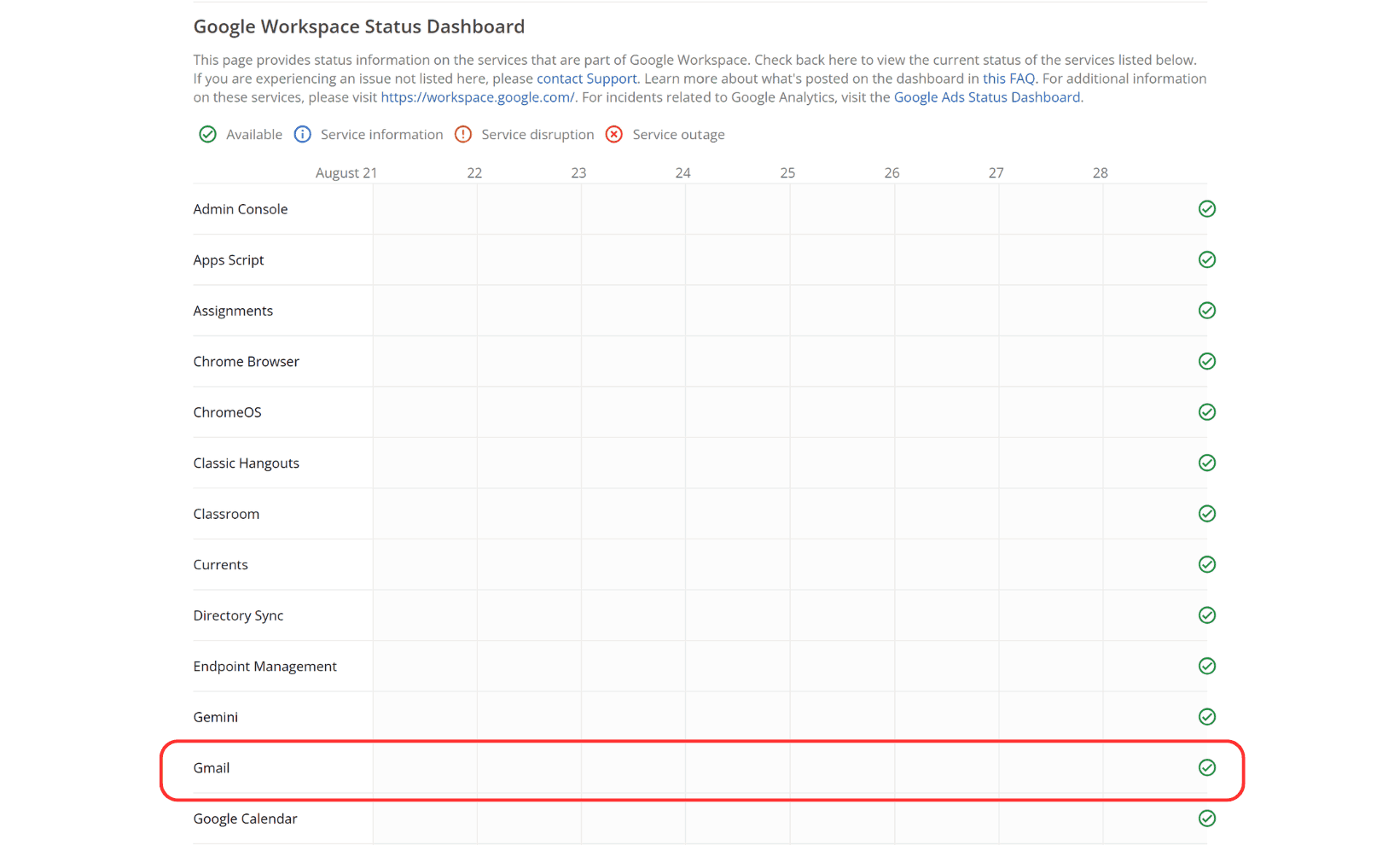
Gmail servers can go down temporarily. When that happens, emails may stop arriving.
To check:
- Visit the Google Workspace Status Dashboard
- Look for Gmail
- If it is not green, there is an outage
If Gmail is down, the only thing you can do is wait. Service is usually restored quickly.
Fix 6: Check Your Internet Connection
It sounds obvious, but it matters.
If your connection is unstable, Gmail may not sync properly.
Try this:
- Refresh Gmail
- Switch networks if possible
- Open Gmail in another browser
If emails appear there, the issue is likely your connection or device.
Fix 7: Clean Up Your Inbox
If your inbox is overloaded, it can affect performance and make it harder to manage incoming emails.
Instead of deleting emails one by one, you can speed things up.
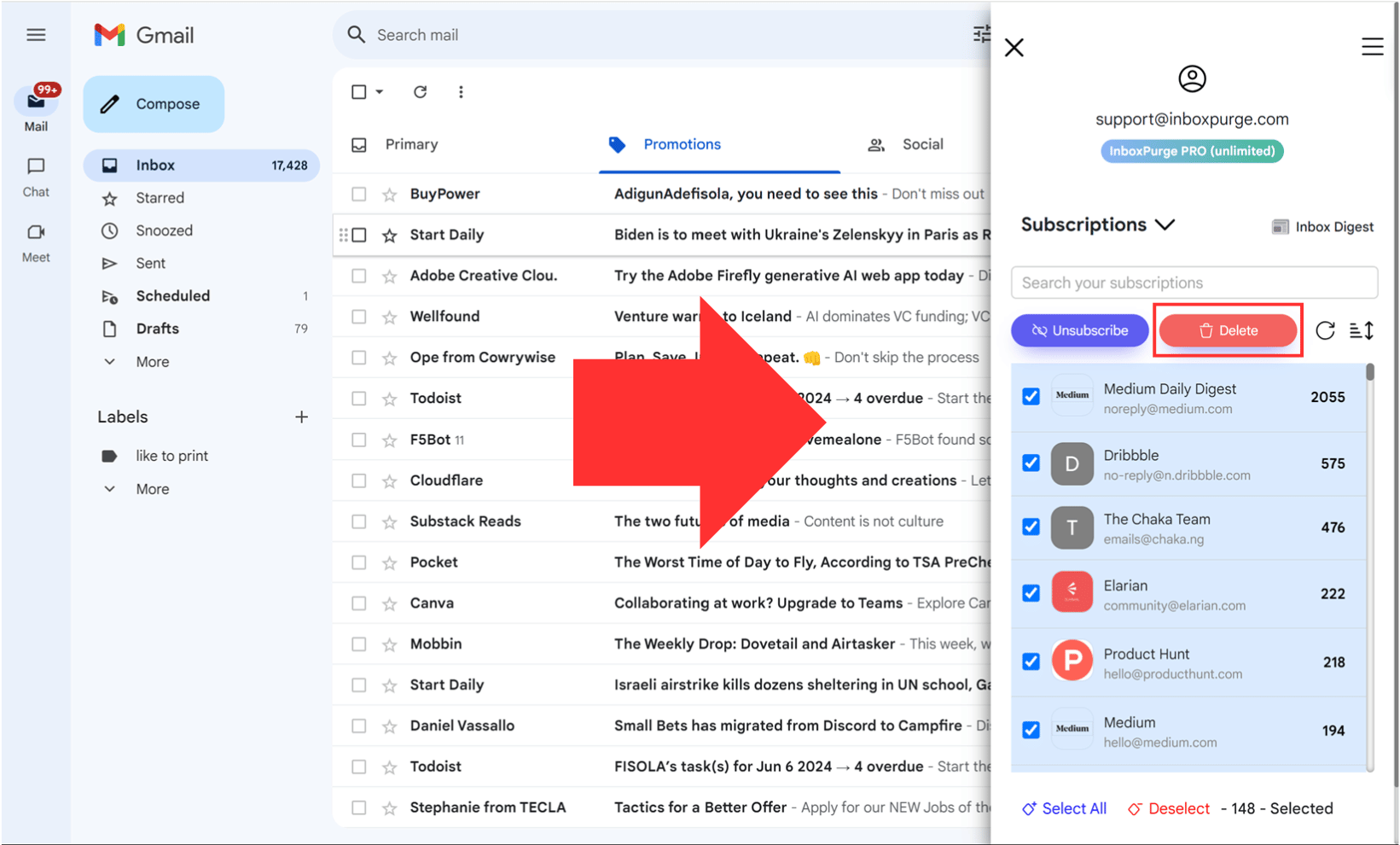
InboxPurge helps you:
- Delete thousands of emails in seconds
- Unsubscribe from unwanted emails instantly
Cleaning up your inbox not only improves performance, it also helps prevent issues like this in the future.
Conclusion
If Gmail is not receiving emails, it is usually caused by a small issue that is easy to fix.
Start with storage, then move through filters, spam, and settings. One of these steps will likely solve the problem.
Once fixed, keeping your inbox clean will help prevent it from happening again.
Frequently Asked Questions (FAQs) about Gmail Not Receiving Emails
1. Why am I not receiving emails in my Gmail account?
There are several potential reasons you may not be receiving emails, including reaching your Gmail storage limit, having incorrect filters, blocked addresses, email forwarding settings, or a Gmail service outage. Ensure your storage is not full, and check your spam folder, email filters, and forwarding settings for any errors.
2. How do I check if Gmail is down?
You can visit the Google Workspace Status Dashboard to check for any service disruptions. If Gmail's status indicator is not green, the service might be down temporarily.
3. What should I do if my Gmail storage is full?
If your Gmail storage is full, you'll need to free up space by deleting old emails, large attachments, or unnecessary files in Google Drive or Google Photos. You can also consider upgrading your storage plan through Google One.
4. Can Gmail filters prevent me from receiving emails?
Yes, Gmail filters can automatically archive, delete, or label incoming emails based on the rules you set up. It's possible that a filter is redirecting your emails away from the inbox. To review filters, go to Gmail settings and check the “Filters and Blocked Addresses” tab.
5. How can I free up Gmail storage quickly?
A quick way to free up storage is by searching for and deleting emails with large attachments. Use the search term "larger:10M" in Gmail’s search bar to find emails with attachments larger than 10MB. You can also use tools like InboxPurge to bulk delete unwanted emails and manage your inbox more efficiently.
6. What can I do if legitimate emails are going to my spam folder?
If important emails are being sent to spam, you can manually move them back to your inbox and mark them as “Not Spam” to prevent future emails from the same sender from going to the spam folder. You can also add the sender to your contact list to ensure they are recognized as a trusted source.
7. How do I stop emails from going to another address?
If your emails are being forwarded to another address, you can stop this by going to Gmail settings, navigating to the “Forwarding and POP/IMAP” tab, and disabling any forwarding rules that are in place.
8. What is InboxPurge, and how can it help me manage my inbox?
InboxPurge is a Chrome extension that helps you bulk delete unwanted emails, unsubscribe from newsletters, and manage your Gmail inbox more efficiently. It’s a great tool for organizing your inbox and ensuring you don’t miss important emails.
9. How do I check if someone has blocked my email address?
If someone has blocked your email address, your emails will not be delivered to their inbox. While Gmail doesn’t notify you if you’ve been blocked, consistently not receiving replies from a particular contact could be a sign. You can try reaching out through an alternative method to confirm.
10. Why is my Gmail not syncing on mobile?
If Gmail isn’t syncing on your mobile device, check your internet connection, make sure background data is enabled, and verify that Gmail sync is turned on in the app’s settings. Also, ensure that you have enough storage space on your device.