How to Turn Off Amazon Email Notifications
Getting too many emails from Amazon? You can turn off most Amazon email notifications in just a few minutes.
This guide walks you through how to stop Amazon promotional emails, manage order notifications, and adjust your Amazon email preferences so only the messages you actually want make it to your inbox.
How to Stop Amazon Promotional Emails
Amazon sends marketing emails based on your browsing and purchase history. Here's how to turn them off:
- Log in to your account at amazon.com.
- Click Accounts & Lists in the top right corner, then select Your Account.
- Scroll to the Communication and content section and click Communication preferences.
- Expand the Email Preferences section and select Do not send me marketing information by mail.
- You can also uncheck specific categories if you only want to stop certain types of promotions.
- Click Update to save your changes.
This stops most promotional and recommendation emails. Changes usually take effect within a few days.
How to Turn Off Amazon Email Notifications for Orders
Amazon doesn't let you fully disable order confirmations or shipping updates from your account settings. These are considered transactional emails.
But you can manage them using your email provider:
Set up a filter in Gmail (or your email app):
- Open your email and search for Amazon order emails.
- Click the filter or "more options" icon in the search bar.
- Create a rule to automatically archive, label, or skip the inbox for emails from Amazon's order addresses.
This keeps your inbox clean without losing access to the notifications entirely. They'll still be available in a folder if you need them.
Block Amazon emails entirely (use with caution):
You can block Amazon's sender domain through your email settings. But this will also block important messages like order confirmations and delivery updates. Only do this if you're sure you don't need any Amazon emails at all.
Amazon Email Notification Settings: Where to Find Them
If you want more control over exactly which emails Amazon sends, here's where to look:
- Go to Your Account on Amazon.
- Under Communication and content, click Email subscriptions.
- You'll see a list of all the newsletters, product updates, and alerts you're subscribed to.
- Toggle off anything you don't want.
- Review and confirm your changes.
This is separate from the promotional email setting above. Amazon splits its email controls across two areas, so check both to fully manage your Amazon email preferences.
How to Stop Amazon Emails Using InboxPurge
If you're getting flooded with Amazon emails in Gmail and want a faster way to clean up, InboxPurge can help.
InboxPurge is a Chrome extension that lets you bulk unsubscribe from senders like Amazon in seconds, without hunting through settings manually.
Here's how it works:
- Install the InboxPurge Chrome extension.
- Open Gmail and connect your account.
- Use the InboxPurge sidebar to find Amazon emails, then click Unsubscribe.
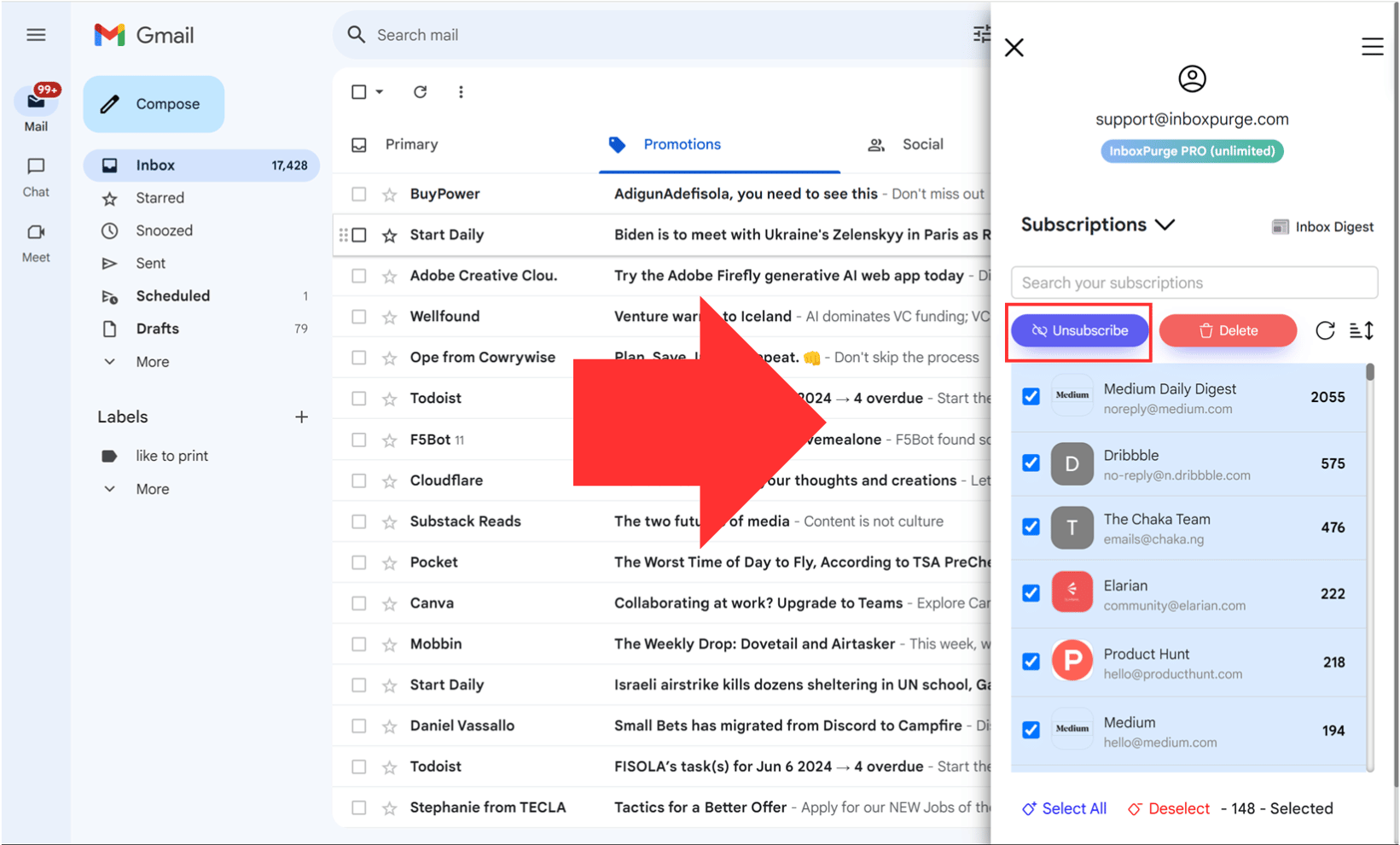
It's especially useful if Amazon isn't the only sender cluttering your inbox. You can clean up dozens of subscriptions at once.
Why Am I Getting So Many Emails from Amazon?
Amazon sends emails for a lot of reasons: order confirmations, shipping updates, deals, recommendations, wishlists, subscription renewals, and more.
Most of these are tied to your purchase activity and browsing history. The more you shop, the more emails you get. Amazon also signs you up for certain notifications by default when you create an account or use a new service.
The good news is that most of these can be turned off using the steps above.
FAQs About Stopping Amazon Emails
Can I stop Amazon order confirmation emails?
Not directly from Amazon. Order confirmations are transactional, so Amazon doesn't offer an unsubscribe option for them. You can use email filters to automatically archive or hide them instead.
Is it safe to click unsubscribe in Amazon emails?
Yes, as long as the email is actually from Amazon. Check the sender address before clicking. Legitimate Amazon emails come from addresses ending in @amazon.com. If anything looks off, don't click the link.
What if I still get Amazon emails after changing my preferences?
Double-check both your Communication preferences and Email subscriptions in your Amazon account. These are in two different places. If emails keep coming, use a tool like InboxPurge or set up filters in your email provider to catch what slips through.
Get Rid of Junk Emails in Minutes
Use InboxPurge to quickly unsubscribe, delete old emails, and keep your inbox tidy
Clean My Inbox Now →Clean your inbox in minutes


