How to Turn Off Teams Email Notifications
Microsoft Teams sends you email notifications every time you miss a message, mention, or call. If you also use Outlook, that means double notifications for the same thing.
You can turn off Teams email notifications in a few steps. This guide covers how to do it on desktop, mobile, and through Outlook so you only get alerts where you actually want them.
How to Turn Off Teams Email Notifications on Desktop
This is the fastest way to stop Teams emails:
- Open Microsoft Teams and log in.
- Click your profile picture in the upper-right corner.
- Select Settings.
- Go to the Notifications tab.
- Find Email notifications and click the dropdown.
- Set it to Off.
That's it. Teams will stop sending email copies of your notifications. You'll still get alerts inside the Teams app itself.
How to Turn Off Teams Email Notifications on Mobile
If you mostly use Teams on your phone, you can turn off email notifications from the mobile app:
- Open the Teams app on your phone.
- Tap your profile icon at the top.
- Tap Notifications.
- Scroll to Email notifications.
- Toggle it off.
This only controls email notifications. Push notifications on your phone stay on unless you turn those off separately.
How to Turn Off Teams and Outlook Notifications
If you use both Teams and Outlook, you're probably getting hit with alerts from both apps for the same messages. Here's how to cut down the noise:
In Teams: Follow the desktop steps above to turn off email notifications entirely.
In Outlook:
- Open Outlook and go to Settings (gear icon).
- Navigate to General > Notifications.
- Turn off notifications for Teams activity, or adjust which types of alerts Outlook shows you.
On Windows:
- Open Settings > System > Notifications.
- Scroll to Microsoft Teams and Outlook.
- Toggle off whichever app notifications you don't need.
This way you can keep notifications in one place (like Teams only) and silence the rest. No more duplicate alerts across both apps.
How to Stop Teams from Sending Emails About Messages
If the main issue is that Teams emails you every time someone sends a message, the fix is the same: turn off email notifications in Teams settings (steps above).
Teams sends these emails when you're marked as "away" or haven't opened the app in a while. Once you disable email notifications, it stops sending those catch-up emails entirely.
If you want to keep some email alerts (like for missed calls) but stop the ones about chat messages, you can customize this:
- Go to Settings > Notifications in Teams.
- Review each notification category (mentions, replies, calls, etc.).
- Set the ones you don't want to Off or Banner only instead of email.
How to Unsubscribe from Teams Emails Directly
You can also stop Teams emails without opening the app:
- Open any Teams notification email in your inbox.
- Scroll to the bottom.
- Click the Unsubscribe link.
- Confirm when prompted.
This works well if you just want a quick fix from your inbox.
Stop Teams Emails in Gmail with InboxPurge
If Teams emails have been piling up in your Gmail and you want to clean house fast, InboxPurge can help.
InboxPurge is a Chrome extension that finds all your subscription and notification emails, including Teams alerts, and lets you bulk unsubscribe in seconds.
- Install the InboxPurge Chrome extension.
- Open Gmail and connect your account.
- In the InboxPurge sidebar, find Microsoft Teams emails and click Unsubscribe.
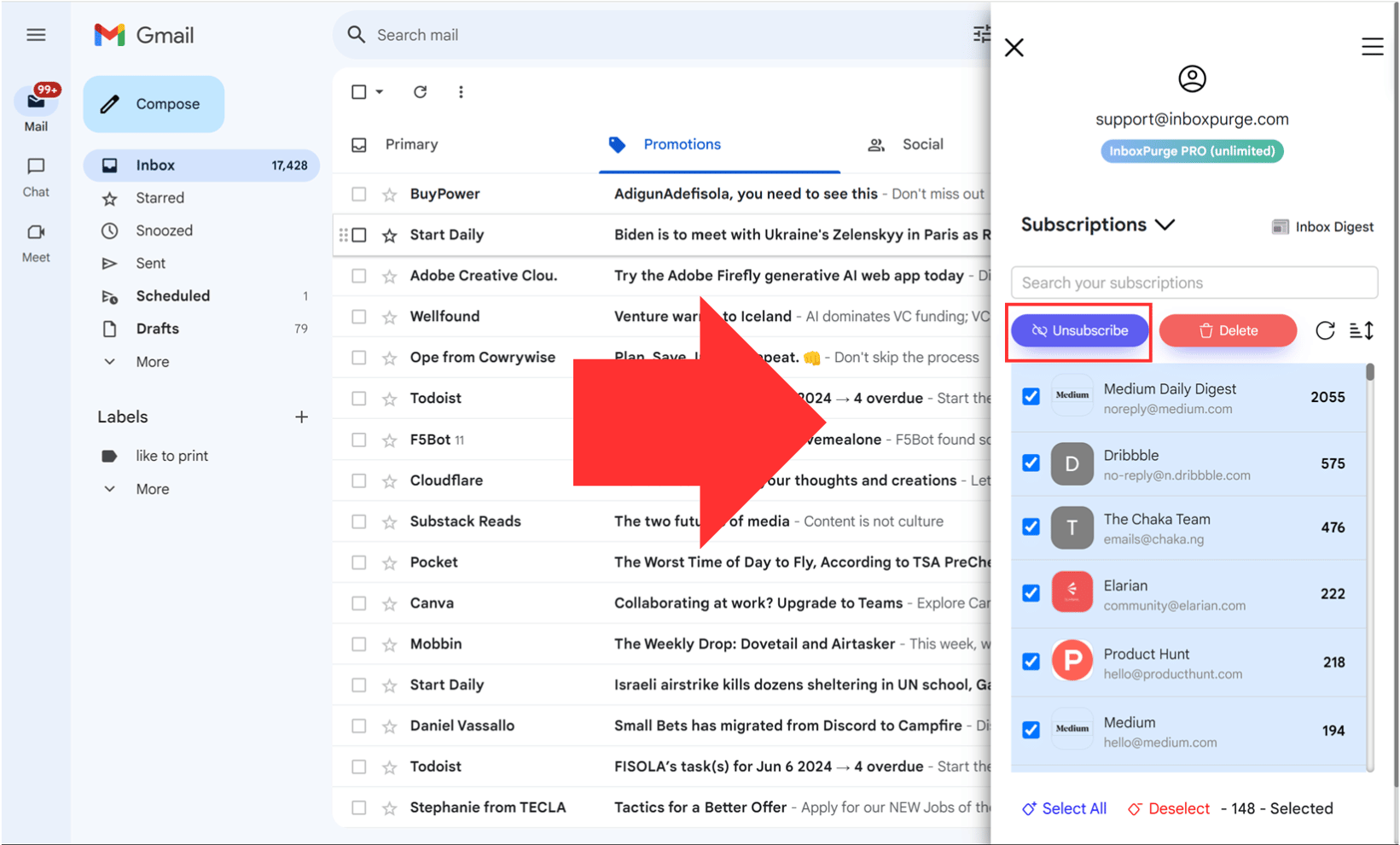
It handles the unsubscribe links for you and can also delete old Teams emails in bulk. Useful if Teams isn't the only sender cluttering your inbox.
Why Does Microsoft Teams Send So Many Emails?
Teams sends email notifications as a backup. If you haven't opened the app in a certain amount of time, it assumes you might miss something and sends you an email instead.
This includes missed messages, mentions, replies, and missed calls. The longer you're away from the app, the more emails it sends.
The fix is simple: either keep Teams open so it doesn't trigger the backup emails, or turn off email notifications using the steps above.
FAQs About Stopping Teams Email Notifications
Will I miss anything if I turn off Teams email notifications?
No. You'll still get all notifications inside the Teams app. Turning off email notifications just removes the duplicate copies that go to your inbox.
Can I turn off some Teams emails but keep others?
Yes. In Teams settings under Notifications, you can customize which activities trigger email alerts. You can keep emails for missed calls, for example, but turn them off for chat messages.
Why am I still getting Teams emails after turning off notifications?
Double-check that the setting saved properly. Some Teams emails (like weekly digests or admin messages) come from different settings. Also check your Outlook notification settings if you use both apps together.
Does turning off email notifications also stop push notifications?
No. Email and push notifications are separate. You can turn off Teams emails and still receive push alerts on your phone or desktop.
Get Rid of Junk Emails in Minutes
Use InboxPurge to quickly unsubscribe, delete old emails, and keep your inbox tidy
Clean My Inbox Now →Clean your inbox in minutes


