How to Delete More Than 50 Emails in Gmail (2026)
Delete Thousands of Emails in One Click
Bulk delete emails instantly without going through them one by one
Delete Emails Fast →Clean your inbox in minutes
Trying to delete more than 50 emails in Gmail? Gmail only shows 50 per page, which makes bulk cleanup feel impossible.
But there's a simple trick that lets you select and delete all your emails at once. Not just 50. All of them. It takes about 10 seconds.
Here's exactly how to do it.
How to Delete More Than 50 Emails in Gmail
This is Gmail's built-in "select all conversations" trick. Most people don't know it exists.
- Open Gmail and go to your Inbox (or any label/folder).
- Click the checkbox at the top left. This selects the 50 emails on the page.
- A message appears: "All 50 conversations on this page are selected. Select all conversations in [Inbox]."
- Click "Select all conversations in [Inbox]." Now every email in your inbox is selected.
- Click the trash icon to delete them all.
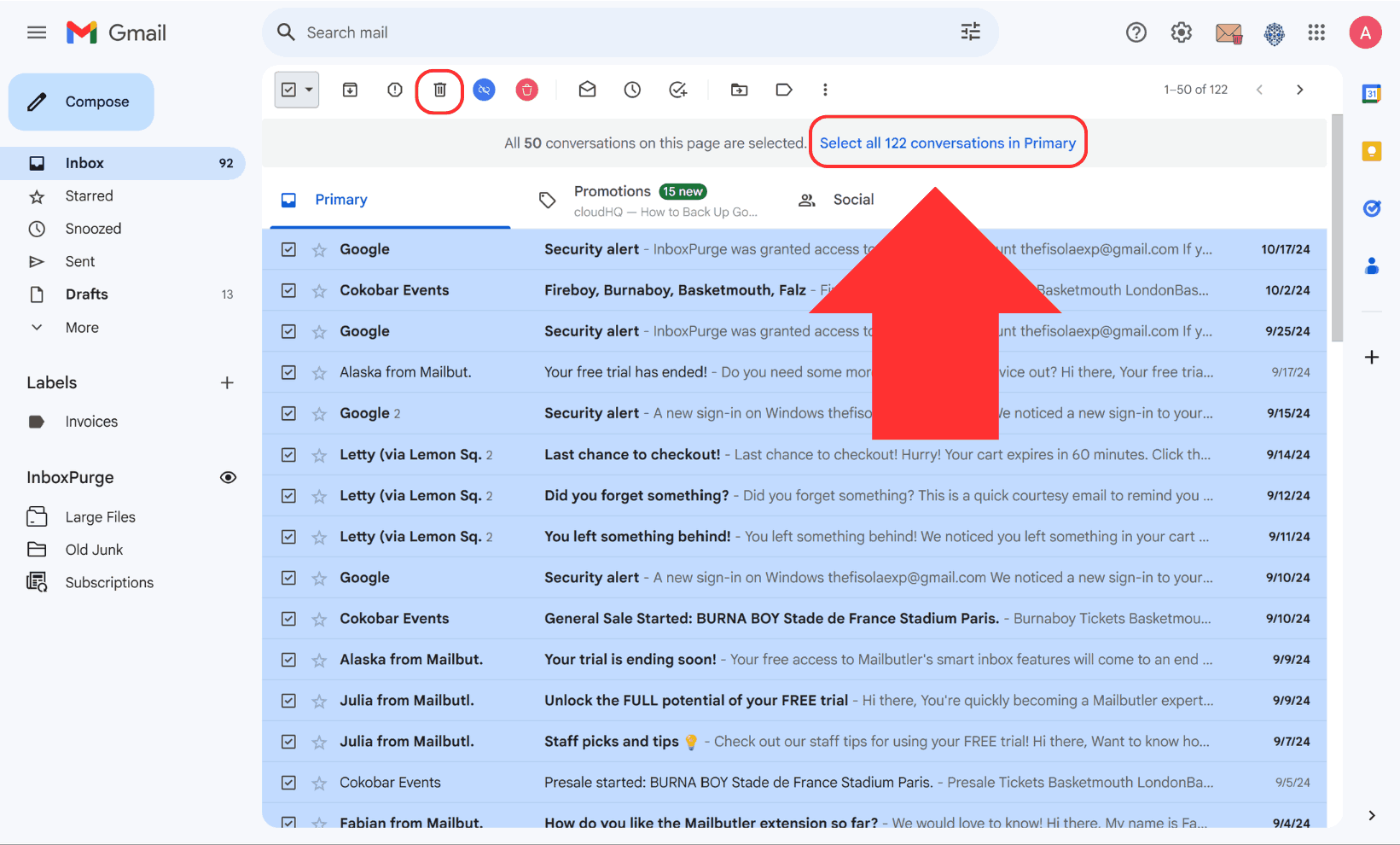
That's it. Whether you have 500 or 50,000 emails, they're all selected and deleted in one shot.
How to Select More Than 50 Emails in Gmail Using Search Filters
Don't want to delete everything? Use Gmail's search bar to target specific emails first. Then use the same "select all" trick from above.
Delete emails from one sender: Type from:[email protected] in the search bar. Select all and delete.
Delete old emails: Type before:2023/01/01 to find emails older than a specific date. Select all and delete.
Delete all unread emails in Gmail (more than 50): Type is:unread to pull up every unread message. Select all and delete.
Delete large emails taking up storage: Type larger:10M to find emails with big attachments. Review and delete.
Delete promotional emails: Type category:promotions to filter all promo emails. Select all and delete.
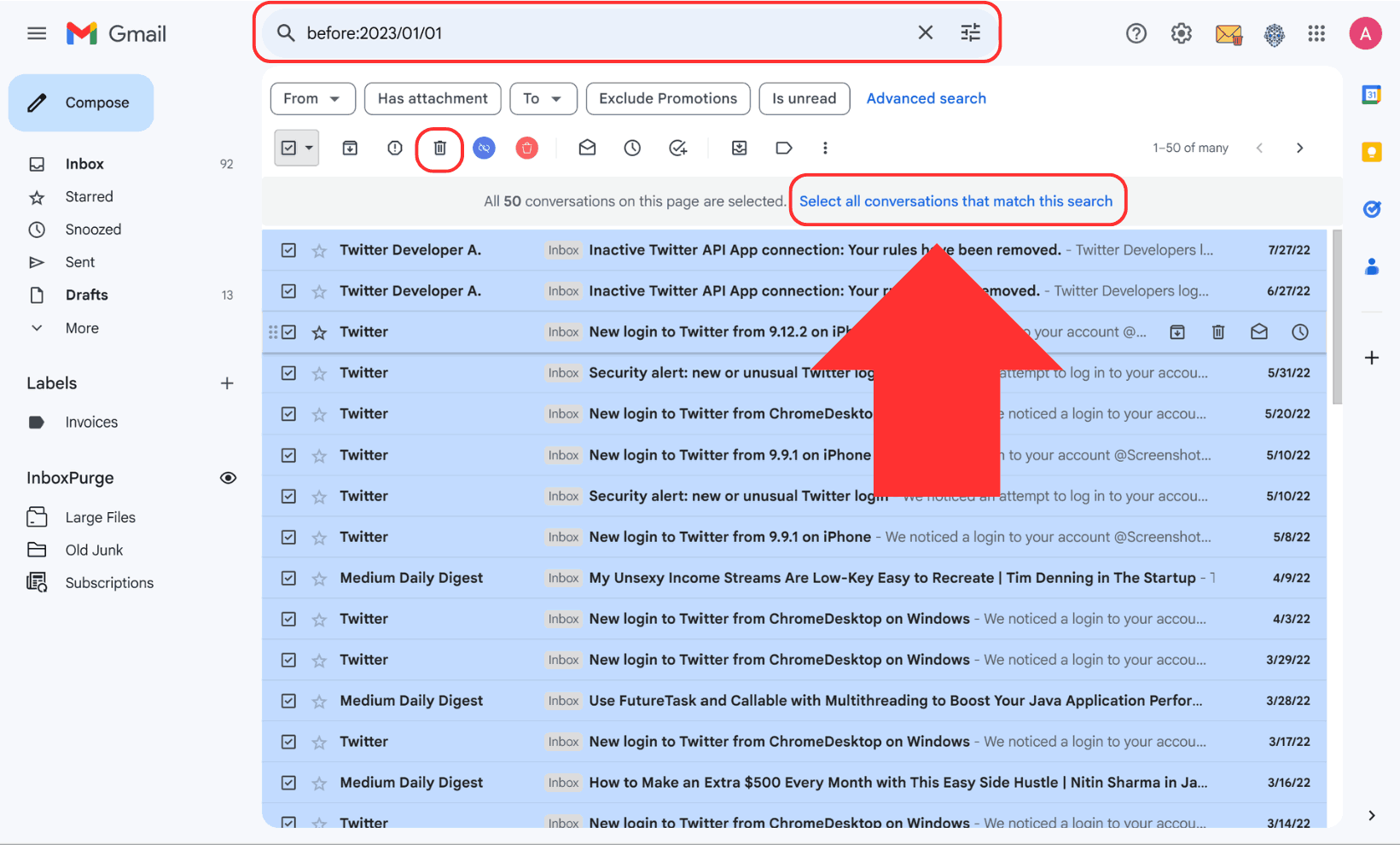
Pro tip: Combine filters for precision. For example, from:[email protected] before:2024/01/01 targets old emails from one sender.
How to Mass Delete Emails in Gmail (Fastest Method)
If you have thousands of emails from dozens of senders, doing this manually still takes time. You have to search, select, delete, and repeat for each sender.
InboxPurge handles this in seconds. It scans your inbox, shows your top senders ranked by email volume, and lets you delete all their emails with one click.
What it does:
- One-click bulk delete from any sender. No searching or selecting needed.
- Mass unsubscribe from newsletters and promo emails so they stop coming back.
- Smart filters that automatically skip starred and important emails.
How to set it up:
- Install InboxPurge from the Chrome Web Store.
- Open Gmail. The InboxPurge sidebar appears with a list of your top senders.
- Pick the senders you want to clean out and click Delete.
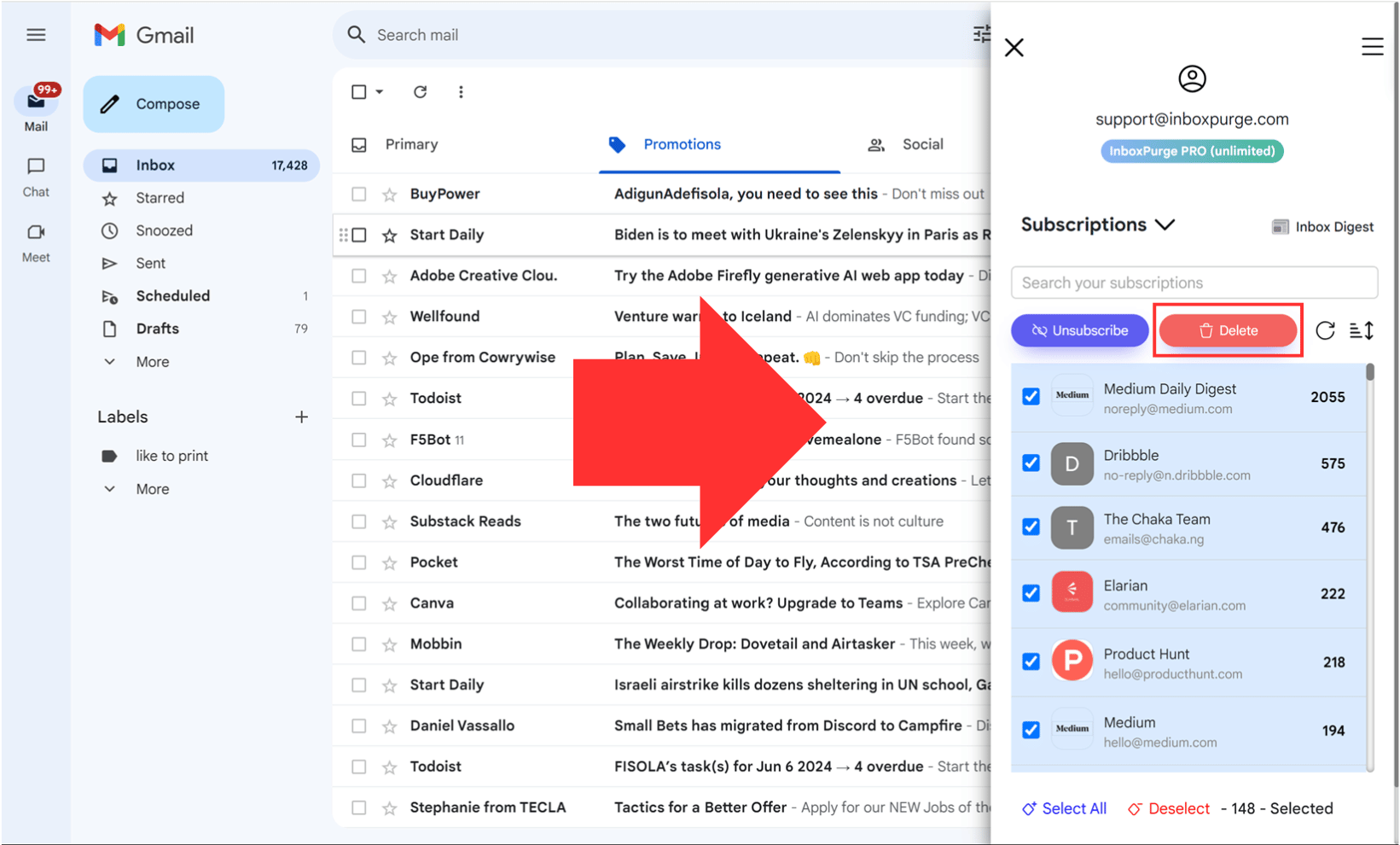
If you're cleaning up thousands of emails across multiple senders, this is the fastest way.
Empty Your Trash to Free Up Storage
Deleted emails sit in Trash for 30 days before Gmail removes them automatically. If you need that storage space back now:
- Click Trash in the left sidebar.
- Click "Empty Trash now" at the top.
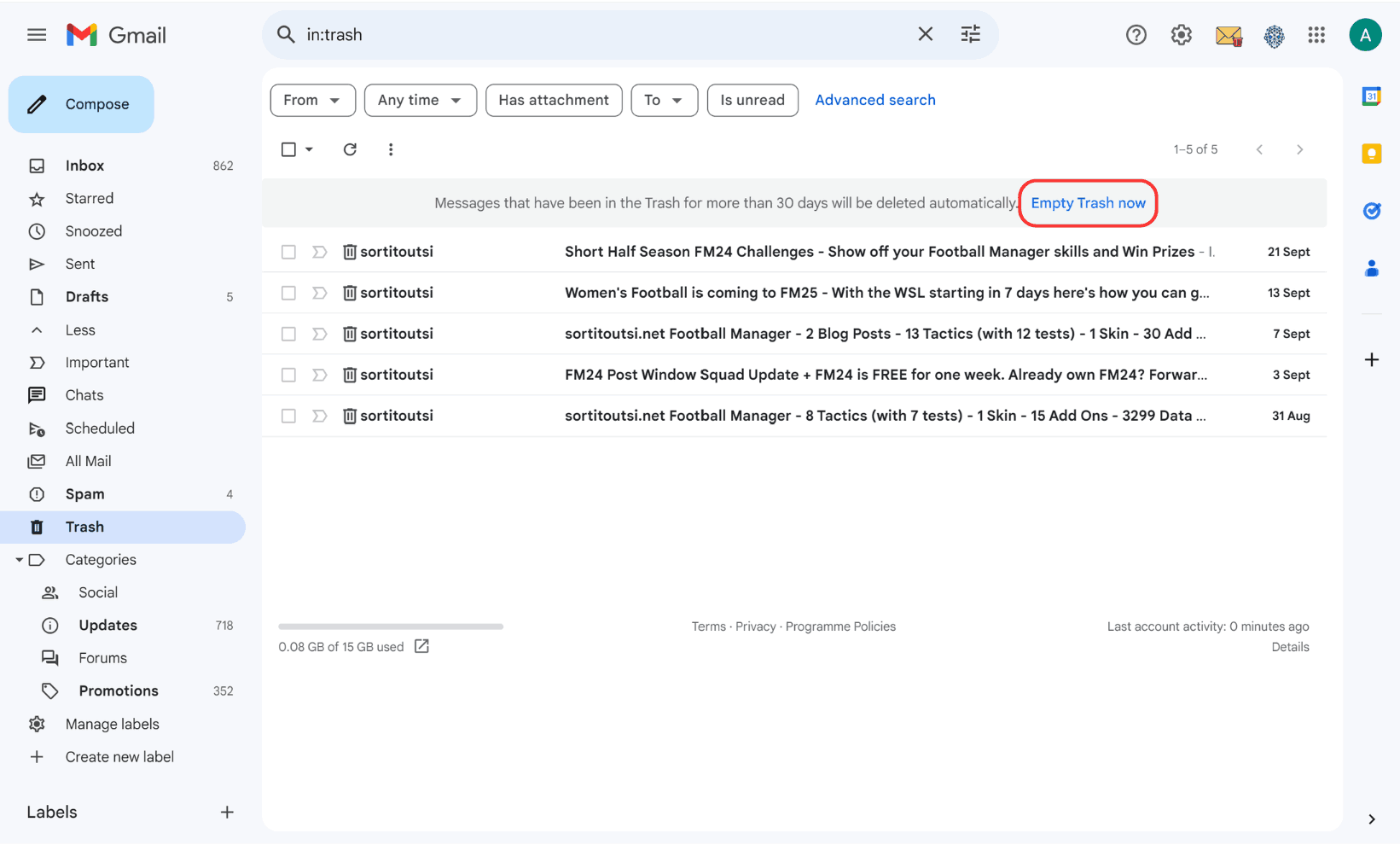
Done. All deleted emails are permanently removed and your storage is freed up instantly.
Can You Delete More Than 50 Emails at a Time in Gmail?
Yes. Gmail shows 50 emails per page by default, but you're not limited to deleting 50 at a time. The "select all conversations" option (shown in the steps above) lets you select and delete every email in your inbox, label, or search result at once.
There's no cap on how many you can delete this way. Whether it's 200 or 20,000, it works the same.
Why Does Gmail Only Show 50 Emails?
Gmail displays 50 conversations per page to keep things fast and responsive. It's a display limit, not a deletion limit.
You can change this to show up to 100 per page in Settings > General > Maximum page size. But even with 50 per page, the "select all conversations" trick still lets you delete everything at once.
Keep Your Inbox Clean Going Forward
Cleaning your inbox is great. Keeping it clean is better. Two quick habits help:
Set up Gmail filters. Auto-archive or auto-delete emails based on sender or keywords. For example, filter emails containing "unsubscribe" to skip your inbox entirely.
Schedule a monthly cleanup. Block 10 minutes once a month to clear out what piled up. Tools like InboxPurge make this faster since you can spot new high-volume senders at a glance.
Frequently Asked Questions (FAQs) about How to Delete More Than 50 Emails in Gmail
1. Can I delete all emails in my Gmail inbox at once?
Yes, you can delete all emails in Gmail by using the "Select All" feature and clicking "Select all conversations" after selecting the checkbox at the top of your inbox. Then, delete them with the trash can icon.
2. How do I delete emails older than a certain date?
You can use Gmail's search bar with the operator before:YYYY/MM/DD to find emails older than a specific date. Select and delete them using the checkbox and trash icon.
3. Is it possible to delete only unread emails?
Yes, search for is:unread in Gmail to display all unread emails. Select them using the checkbox and delete them in bulk.
4. How can I delete emails with large attachments?
Use the search operator larger:10M to find emails with attachments larger than 10MB. Review and delete the ones you don’t need.
5. What happens to emails after I delete them?
Deleted emails move to the Trash folder, where they remain for 30 days. After that, they are permanently removed unless you manually empty the Trash.
6. Can I recover emails from the Trash?
Yes, as long as the emails are still in the Trash (within 30 days), you can restore them to your inbox by selecting them and clicking the "Move to Inbox" button.
7. Does Gmail automatically delete emails from the Trash?
Yes, Gmail permanently deletes emails from the Trash after 30 days.
8. How can I avoid deleting important emails by mistake?
Use Gmail’s filters or the InboxPurge tool to exclude starred or important emails during bulk deletion.
9. What is InboxPurge, and how does it help?
InboxPurge is a Chrome extension that automates email management in Gmail. It allows you to bulk delete emails, unsubscribe from senders, and exclude important messages with just a few clicks.
10. Does InboxPurge work with multiple Gmail accounts?
Yes, InboxPurge supports multiple Gmail accounts, making it a great solution for managing personal and professional inboxes efficiently.
11. Can I delete promotional emails in bulk?
Yes, search for category:promotions to filter promotional emails. Select all and delete them to clear this category.
12. How do I prevent my Gmail inbox from becoming cluttered again?
Set up filters, unsubscribe from unwanted emails, and schedule regular inbox cleanups using tools like InboxPurge.
13. Is there a way to delete all emails from a specific sender?
Yes, search for from:[email protected] to display all emails from a specific sender. Then, select and delete them in bulk.
14. How can I exclude important emails when deleting in bulk?
In Gmail, you can search with terms like -is:starred or -label:important to exclude starred or labeled emails. InboxPurge also offers options to filter out important emails during bulk deletion.
15. Is InboxPurge safe to use?
Yes, InboxPurge is designed with user privacy in mind. Your data remains secure, and actions are performed directly in your Gmail account without storing sensitive information elsewhere.