How to Delete Labels in Gmail (4 Quick Steps)
Get Rid of Junk Emails in Minutes
Use InboxPurge to quickly unsubscribe, delete old emails, and keep your inbox tidy
Clean My Inbox Now →Clean your inbox in minutes
Want to delete labels in Gmail? It takes less than a minute. Removing a label won't delete your emails either. They stay right where they are.
Here's how to do it.
How to Delete Labels in Gmail on Desktop
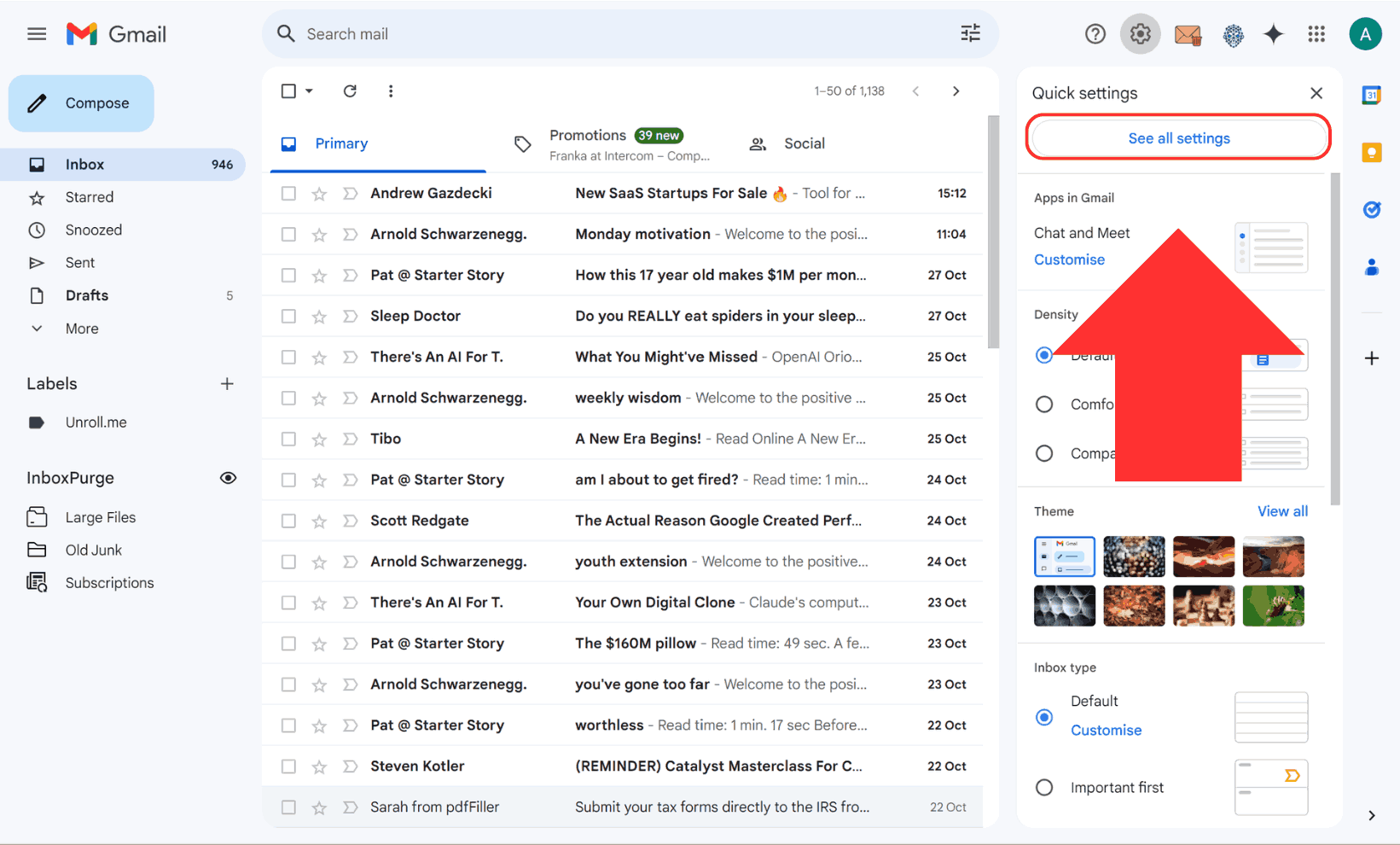
Step 1: Open Gmail Settings
- Log in to Gmail.
- Click the gear icon (⚙️) in the top-right corner.
- Click See all settings.
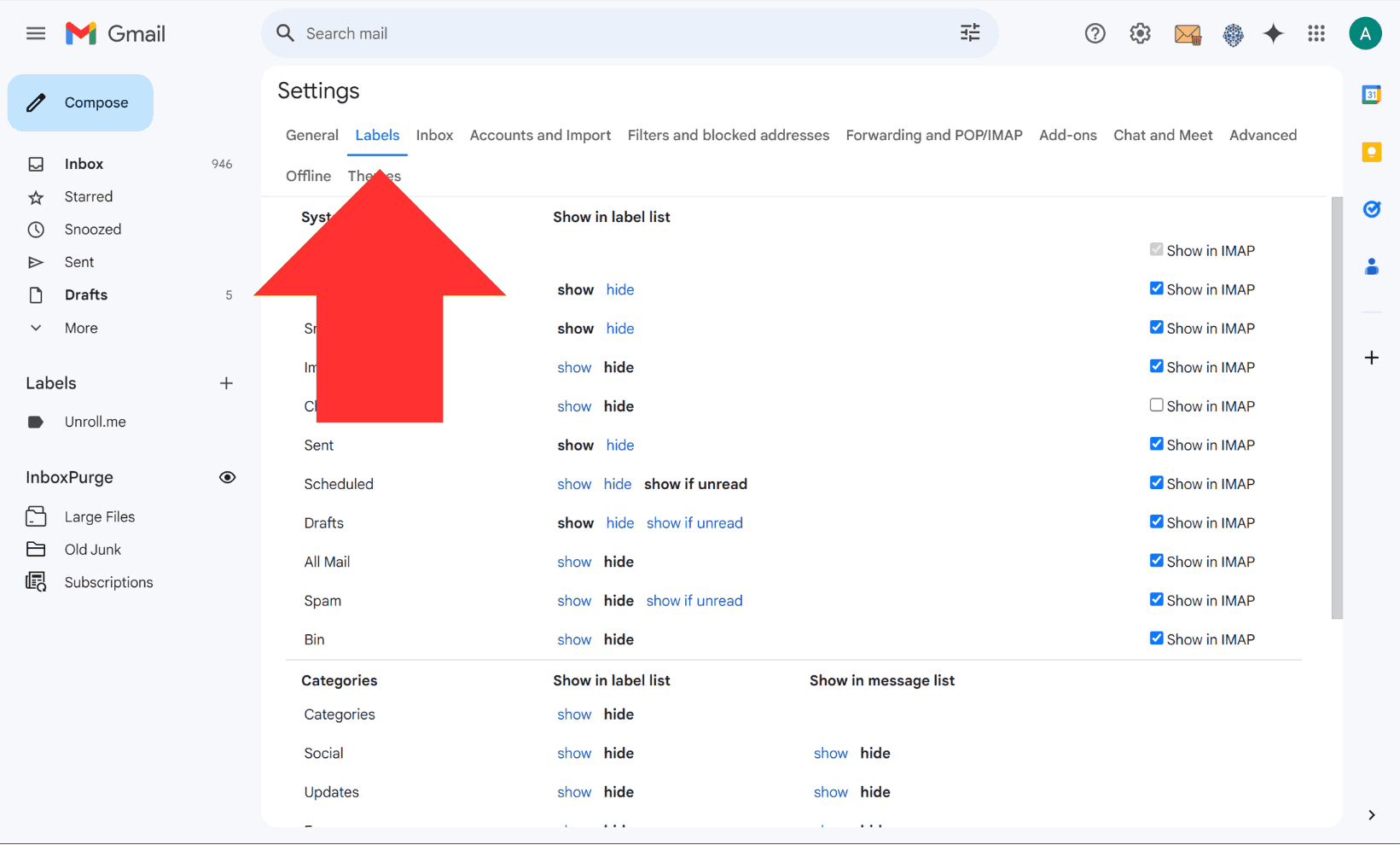
Step 2: Go to the Labels Tab
Click the Labels tab at the top of the settings page. You'll see a list of all your labels, both default Gmail labels and custom ones you created.
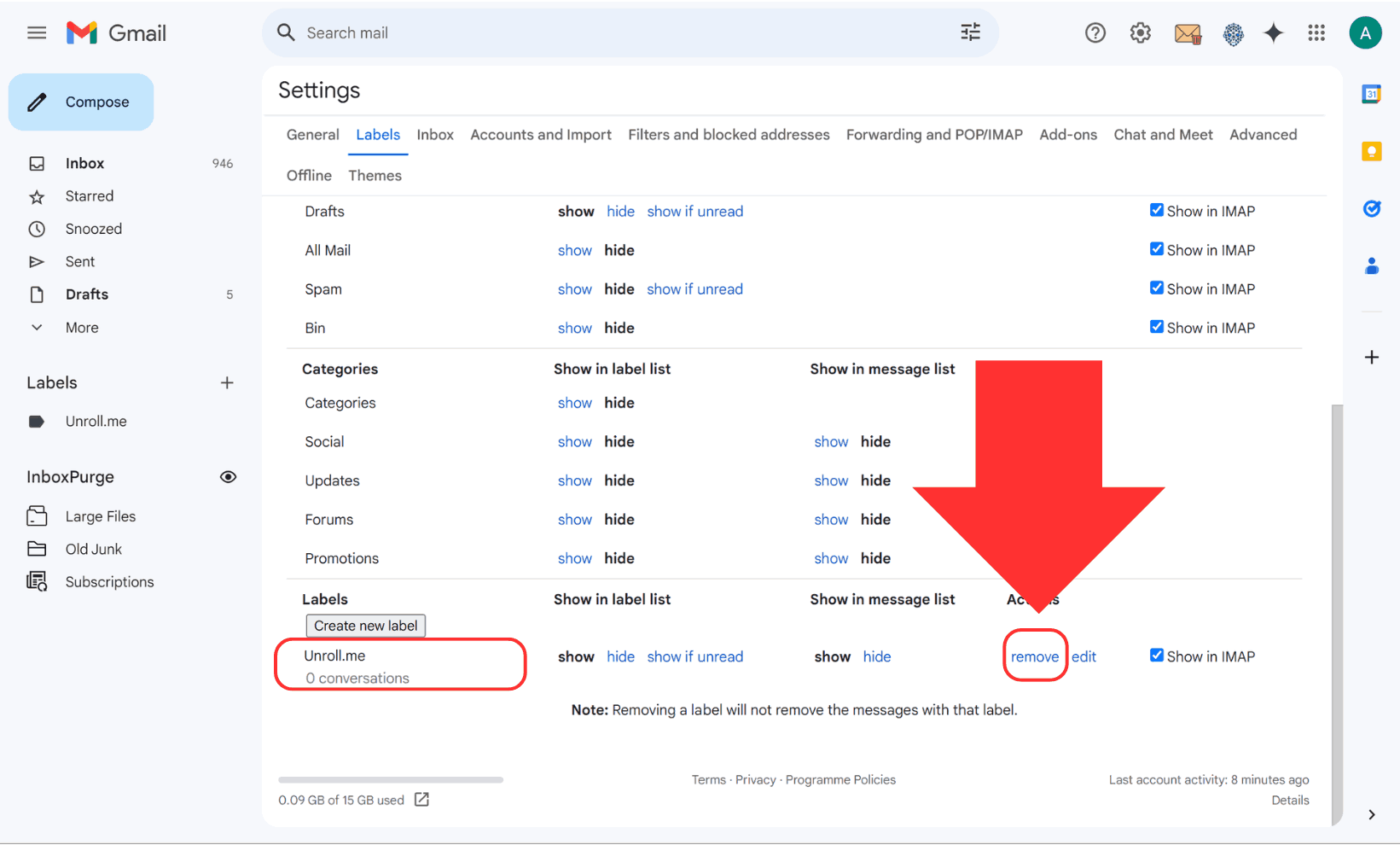
Step 3: Click "Remove" Next to the Label
Scroll down to the label you want to delete. Click Remove next to it. Gmail will ask you to confirm.
Step 4: Confirm the Deletion
Click Delete to confirm. The label disappears from your sidebar immediately.
That's it. The label is gone, and your emails are still in your inbox.
How to Delete Labels in Gmail on iPhone
You can delete Gmail labels directly from the iPhone and iPad app:
- Open the Gmail app.
- Tap the menu icon (three lines) in the top left.
- Tap Settings.
- Go to Inbox customizations > Labels.
- Find the label you want to remove and delete it.
This works the same way on iPad.
How to Delete Labels in Gmail on Android
The Gmail Android app doesn't let you delete labels directly. Here's the fastest workaround:
- Open Chrome (or any browser) on your Android phone.
- Go to mail.google.com.
- Switch to desktop mode (tap the three dots > Desktop site).
- Follow the desktop steps above.
It takes an extra minute, but it works.
How to Get Rid of Multiple Labels at Once
Gmail doesn't have a bulk delete option for labels. You have to remove them one at a time through Settings > Labels > Remove.
If you have dozens of old labels to clean up, here's the fastest approach:
- Open the Labels tab in Gmail settings.
- Keep the page open and click Remove on each label you want to delete.
- Work through them quickly without leaving the settings page.
Each removal only takes a couple of seconds, so even cleaning up 20 labels takes just a few minutes.
Does Deleting a Label Delete the Emails?
No. Deleting a label in Gmail only removes the label itself. Your emails stay in your inbox and in any other labels they belong to. You can still find them using Gmail search.
Think of labels like tags. Removing a tag doesn't throw away the email. It just removes that tag from it.
How Do I Delete Default Gmail Labels?
You can't delete Gmail's built-in labels like Inbox, Sent, Drafts, or Spam. But you can hide them:
- Go to Settings > Labels.
- Find the system label you want to hide.
- Click hide next to it.
This removes it from your sidebar without deleting it.
Tips to Keep Your Gmail Labels Clean
Once you've cleaned up your labels, a few habits will keep them from piling up again:
- Use nested labels. Group related labels under a parent. For example, put "Invoices" and "Receipts" under a "Finance" label.
- Set up filters. Gmail filters can auto-label incoming emails by sender or subject. This reduces the need to create new labels manually.
- Review labels monthly. Spend two minutes each month removing labels you no longer use.
If your inbox has gotten out of control and you want to clean up more than just labels, tools like InboxPurge can help you bulk unsubscribe and clear out old emails fast.
Conclusion
Deleting old or unused Gmail labels is an easy way to declutter your inbox and enhance productivity. Regularly review your labels and keep only those that serve a purpose. For a more organized email experience, consider using labels strategically and automate their application where possible.
Frequently Asked Questions (FAQs) about How to Delete Labels in Gmail
1. What happens to emails when I delete a label in Gmail?
Deleting a label in Gmail only removes the label itself, not the emails associated with it. These emails will remain accessible in your inbox or other labels where they are tagged.
2. Can I delete multiple labels at once in Gmail?
Gmail doesn’t offer a way to delete multiple labels simultaneously on its platform. You’ll need to delete them one by one via the Labels tab in Settings. Alternatively, third-party tools like Clean Email can help manage bulk label actions.
3. Can I delete system labels like Inbox or Sent?
No, system labels such as Inbox, Sent, Drafts, and Important cannot be deleted. However, you can choose to hide these from your main view if you don’t want to see them.
4. Is it possible to delete labels using the Gmail mobile app?
On Android, you cannot delete labels directly in the Gmail app, but you can access and delete labels through a desktop browser. On iOS devices, you can delete labels by accessing Inbox Customizations in the app settings.
5. Can I recover a deleted label in Gmail?
Once a label is deleted, it cannot be restored. You can recreate the label if needed and reapply it to emails manually.
6. How can I organize my inbox without creating too many labels?
Consider using Gmail’s archive feature for storing emails you want to keep but don’t need under specific labels. You can also use nested labels or Gmail’s filters to automatically tag emails without creating additional labels manually.
7. How do I hide a label instead of deleting it?
You can hide labels by clicking the three dots next to the label in your sidebar and selecting Hide. Hidden labels will be accessible under More in your label list.
8. What’s the best way to manage labels for better email organization?
Use descriptive names, avoid creating unnecessary labels, and rely on nested labels for related topics. Automating label application with Gmail filters can also reduce the need for manual label management.